Table of contents
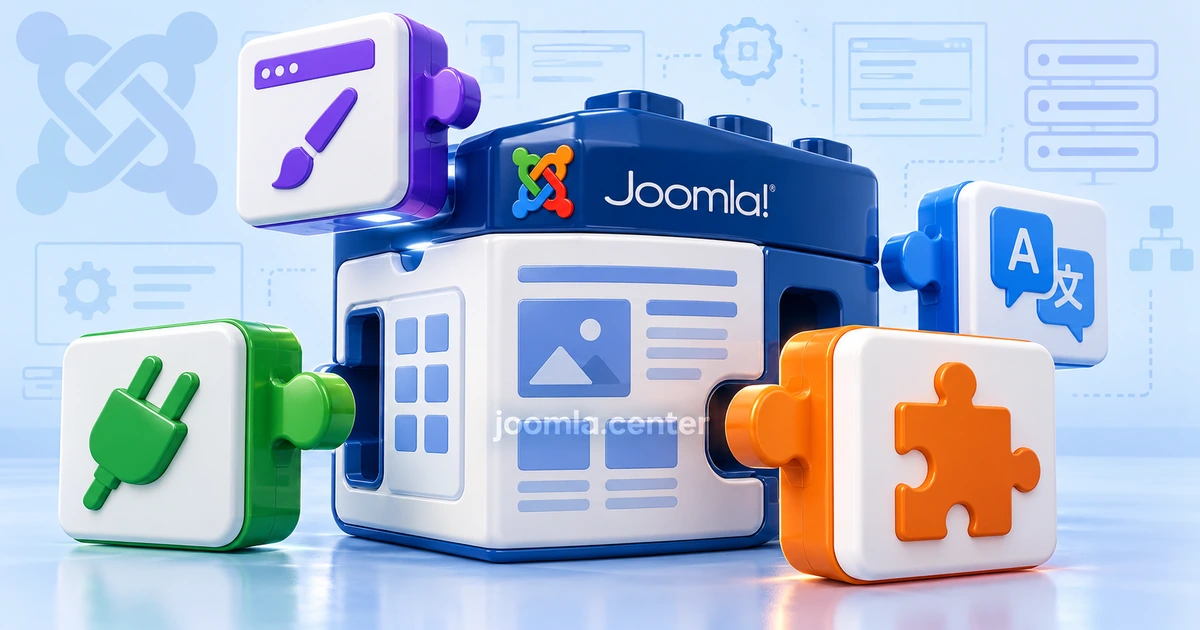
Joomla extensions handle page content, individual blocks, events, layout and interface translations. Many extensions are already included in the CMS. This guide explains the different extension types, when you need additional tools and how to manage them in Joomla 5 and 6.
How to manage extensions
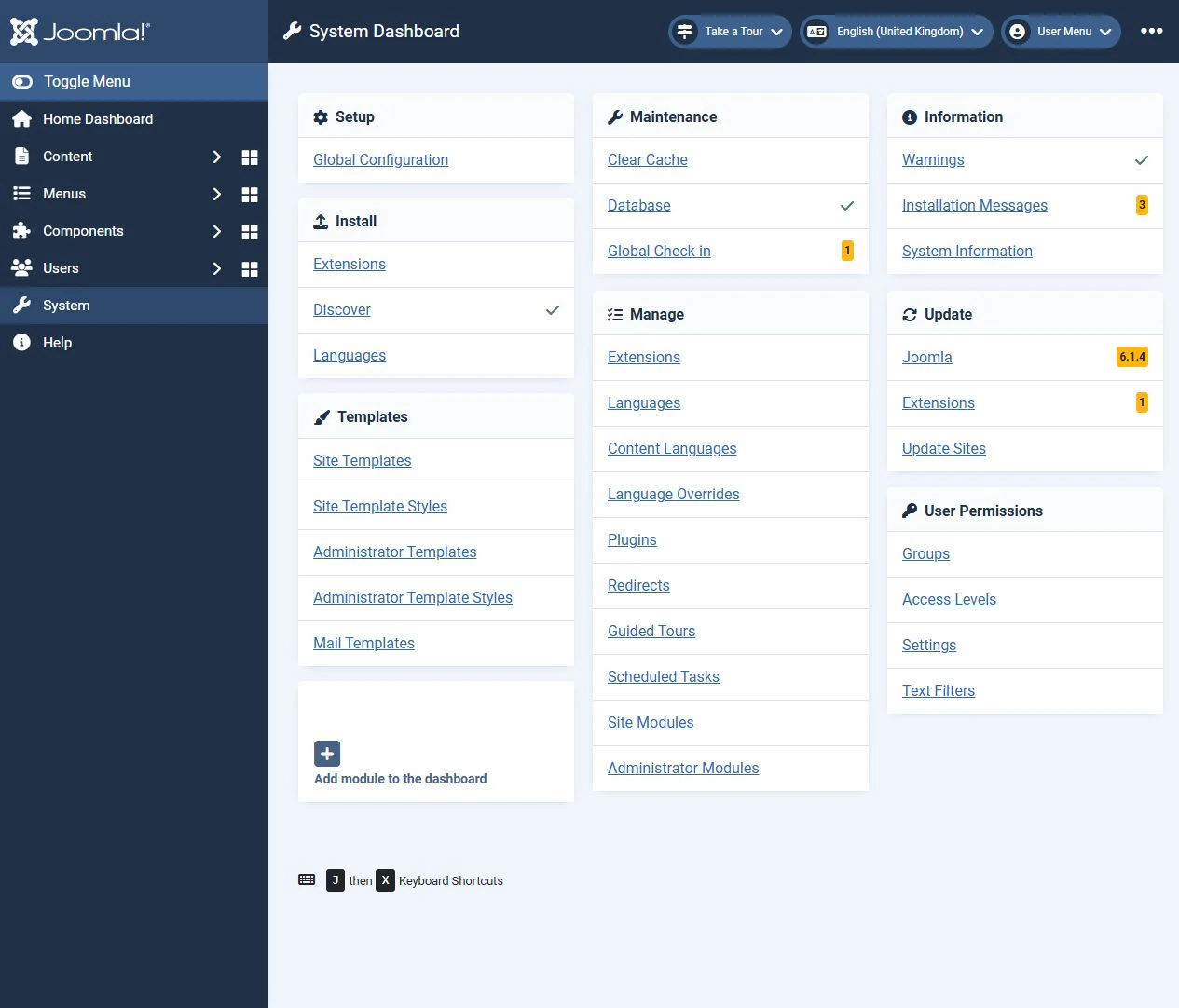
The main tools are on the System dashboard. From here, you can install extensions, review installed extensions and check for updates. Plugins, modules, languages and templates have their own configuration screens.
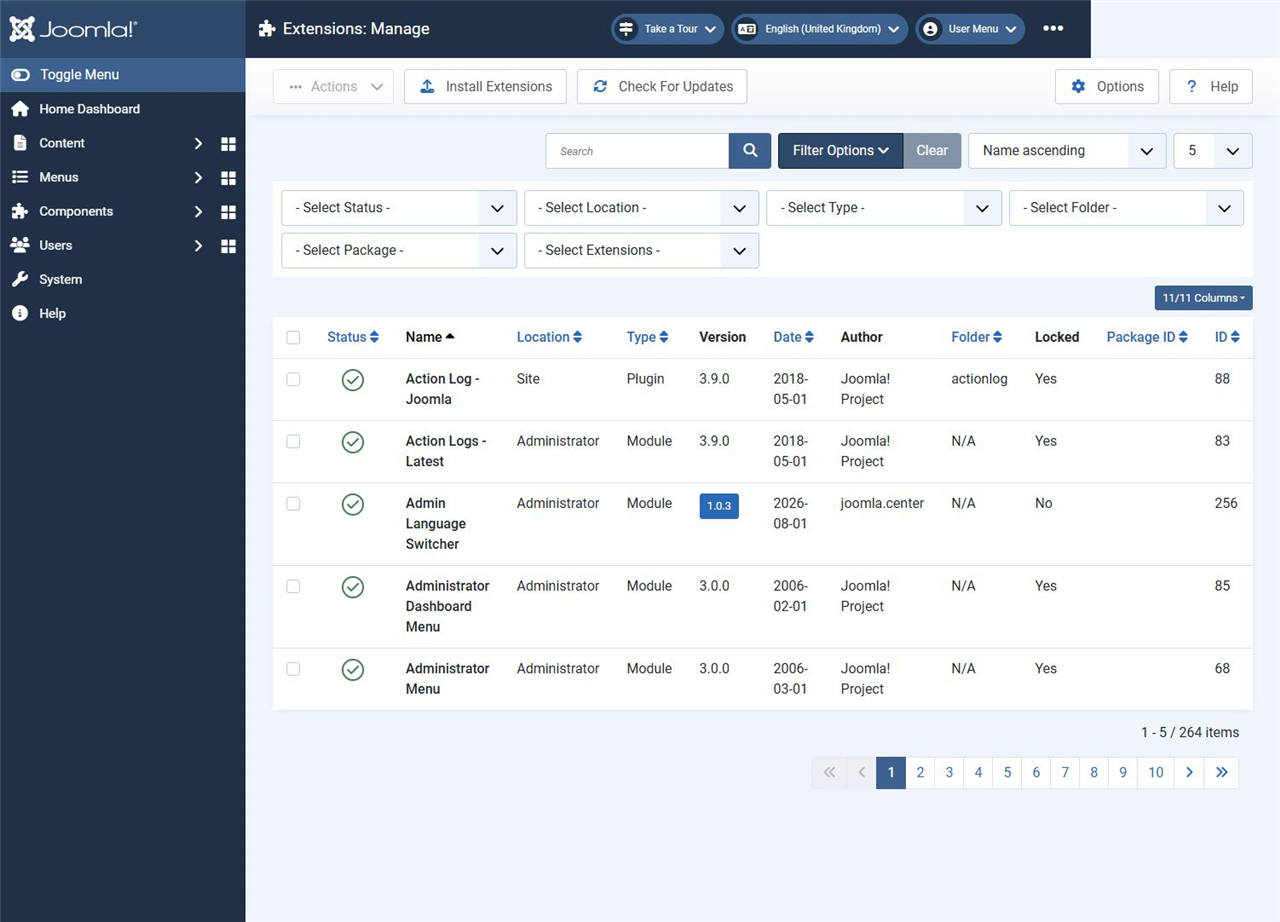
Open System → Manage → Extensions to view installed components, modules, plugins and other extension types. Select Filter Options to filter by type, status, location, plugin folder, package or whether an extension is part of the core.
This list shows installed extensions. For example, several menu blocks created from the same module type are not listed as separate extensions here. You manage those instances in the site modules list.
Extension types
An extension's type describes its structure and role in Joomla. Its origin, purpose and location are additional characteristics: a component can be a third-party extension that runs in the administrator interface and creates backups.
Components
A component provides a self-contained feature, such as article management, a product catalogue, a contact form or backups. It can include site, administrator and API parts.
On a typical site page, the component produces the main content area. For example, Articles displays an article or category blog, while Contacts displays a selected contact's details.
Not every component creates pages for visitors. A maintenance tool may work only in the administrator interface. An extension's size and the presence of a public page therefore do not determine its type.
Modules
A module displays an individual block, such as a menu, breadcrumbs, a login form or a list of articles. Modules are used both on the site and in the administrator interface.
You normally assign a module to a template position and choose the pages where it should appear. Its visibility also depends on its publication status, language, access level and publishing schedule.
One installed module type can have several instances with different settings. For example, two menu modules can provide the main navigation and footer links. A module can work independently or use data from a component.
Plugins
A plugin runs code in response to events triggered by Joomla or another extension. Examples include preparing an article for display, checking login credentials and indexing content.
A plugin can process text, add interface elements or perform background tasks. Its output is not necessarily hidden from visitors: the page navigation plugin adds links between articles.
Plugins belong to groups, shown as Folder in the extensions list. Examples include:
content— content processing;system— system events;editors— editors;editors-xtd— additional editor buttons;finder— Smart Search integration;task— task types for the scheduler.
The group helps explain a plugin's purpose, but its code and settings determine its actual behaviour.
Templates
A template defines the presentation and output structure, including the main content area, module positions, styles and layouts. Site and administrator templates belong to different locations. Cassiopeia and Atum are examples of templates supplied with Joomla.
A template can have several styles, which are saved sets of settings. Creating a style does not install another template. Site template styles can be assigned to individual menu items.
Changing the template preserves your articles, but module positions and presentation can differ. Check module assignments after switching templates.
Languages
Language extensions translate interface strings, such as button labels, messages and other Joomla text. Translations for a third-party extension can be included with it or supplied in a separate installation archive.
A language pack does not automatically translate articles or menu items. A multilingual site also needs content languages, translated articles and menus, language associations and the appropriate site configuration.
You can select the administrator interface language independently of the public site language.
Packages, libraries and files
These types are commonly encountered when installing related tools and their dependencies.
A package bundles several extensions for installation together. For example, it might include a catalogue component, a category module and a search plugin. The extensions list can contain both the package and its constituent extensions. Not every ZIP archive is an extension of the Package type: an individual plugin can also be distributed as a ZIP file.
A library contains shared code used by other extensions. It can be installed separately or included in a package. Do not uninstall a library while components or plugins you use still depend on it.
File is a technical extension type that installs files in locations specified by the developer. It can be used to distribute a utility script, for example. It does not mean an ordinary document or image uploaded through the Media Manager.
Other ways to classify extensions
The extensions list includes several characteristics in addition to the type. They help you find an extension and assess the effects of disabling or uninstalling it.
Origin and purpose
Extensions can be core extensions supplied with Joomla or third-party extensions. Before installing another tool, check whether the core already provides the feature you need.
Purpose describes a task: search, sales, backups, SEO or integration with an external service. It is not a technical extension type. A component, modules and plugins can work together to provide one feature.
For example, in Smart Search, the component displays results, the module provides a search form and plugins connect different types of content to the indexer.
Location
The current extensions list offers Site, Administrator and API locations.
This field does not always describe every capability of an extension. A component can contain several parts, and a system plugin can handle events in different Joomla applications. An extension marked Site is not necessarily a visible block on a public page.
Status and protection against uninstallation
Enabled and Disabled refer to whether an extension is active, where Joomla allows this to be changed. Protected means protection against uninstallation through the extension manager. It is not a security rating or a statement that the code has no vulnerabilities.
These characteristics are independent: some protected extensions can be disabled. Certain system extensions cannot be disabled either. The English interface also shows a Locked column for protection against uninstallation.
Disabling an extension does not remove its files or data. Modules also have a publication status for each instance. An enabled module type therefore does not necessarily mean that its blocks are visible to visitors.
Where to download and how to choose extensions
Start with the official Joomla Extensions Directory. You can compare features, supported versions and reviews there. Look for templates separately, preferably on their developers' websites.
Obtain installation archives from the extension's developer wherever possible. Avoid unknown repackaged builds and nulled commercial versions: their code provenance and access to future updates are unclear.
Before downloading, check:
- support for your Joomla and PHP versions;
- the latest release date and maintenance history;
- documentation and support availability;
- dependencies on other extensions;
- update requirements, including subscriptions or download keys;
- known vulnerabilities and available fixes.
A Joomla 5 compatibility label does not, by itself, confirm Joomla 6 support. If the developer requires a backward compatibility plugin, take that requirement into account. Such a plugin cannot make every older extension compatible.
Before moving to another major Joomla version, test your extensions on a copy of the site. Automated pre-update checks are useful, but depend on information supplied by developers and do not replace testing the features you use.
How to install extensions
Before installation, read the developer's instructions, check the requirements and back up the site's files and database. Try third-party extensions on a test site first.
Open System → Install → Extensions. There are four standard methods; the available tabs depend on which installation plugins are enabled.
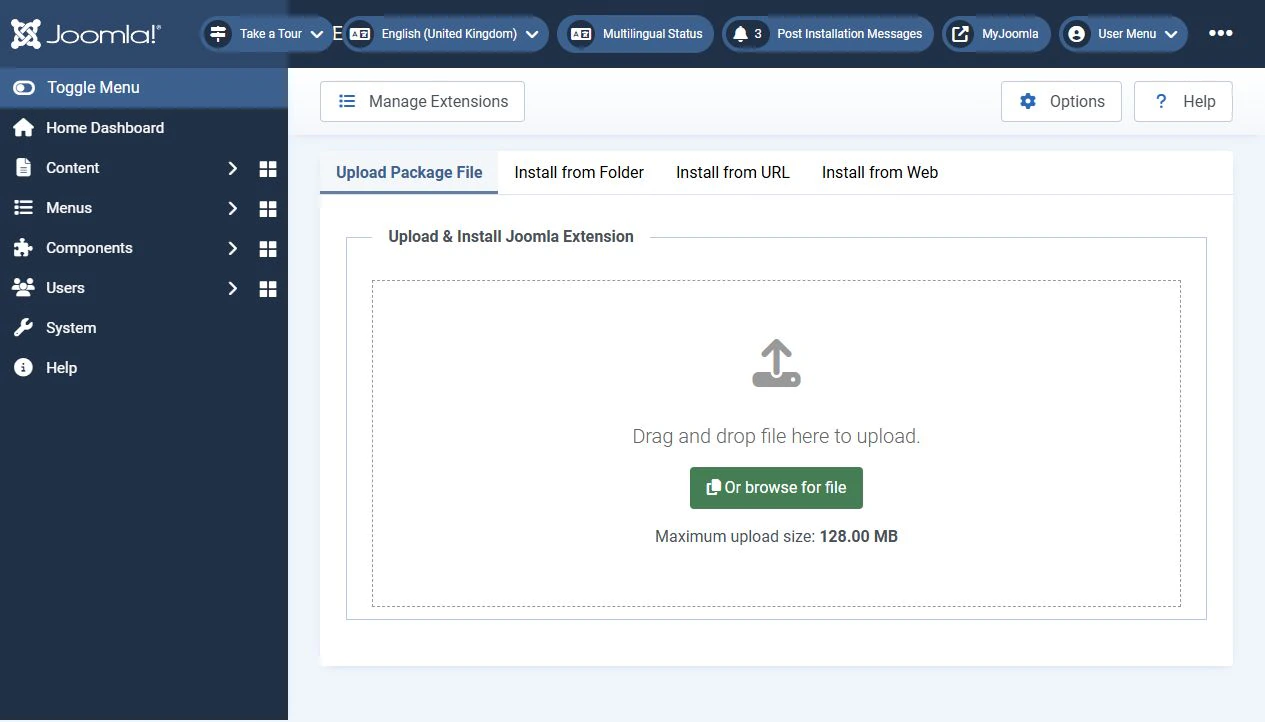
Upload Package File. Select an installation archive on your computer or drag it into the upload area. Installation starts automatically. You normally do not need to extract the archive for this method.
Install from Folder. Extract the extension into a separate folder on the server and enter its path. The installer needs the package files, including its XML manifest. A ZIP archive simply placed in the folder is not enough.
Install from URL. Enter a direct link to the installation archive. The server must be able to download the file; a product page or an account page will usually not work.
Install from Web. Find the extension through the built-in directory. Direct installation depends on how its developer provides downloads; you may need to visit the developer's website.
The separate System → Install → Discover feature detects supported extensions whose files are already in the site's directory structure but have not yet been registered in Joomla. This is a specialised workflow rather than the usual alternative to installing a ZIP archive.
For more details, see Installing Joomla Extensions (in Russian).
What to configure after installation
A successful installation message confirms that the installer has finished. Further configuration is often needed before you can use the extension:
- Component: configure it, create the required data and add a menu item for a public page if needed.
- Module: create or open an instance, assign its position and pages, and publish it.
- Plugin: check its settings and enable it if the instructions require this.
- Template: configure a style, make it the default or assign it to the required menu items, and check module positions.
- Language: select the interface language; configure content languages and associations separately for multilingual content.
After configuration, test the result using the kinds of accounts the feature is intended for. Administrator permissions can hide access problems that ordinary visitors encounter.
How to update extensions
Open System → Update → Extensions and select Check For Updates. Before updating, read the changelog, check compatibility and prepare a backup. Then select the extensions you want to update and click Update.
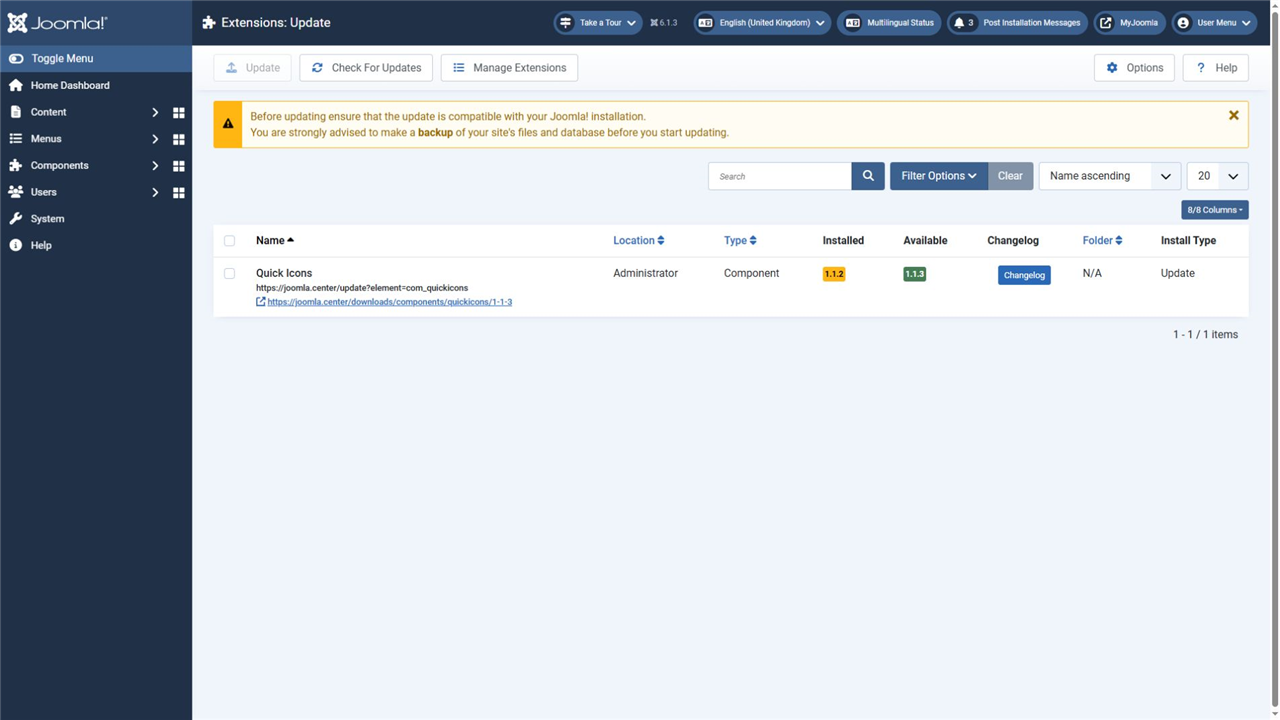
If an expected update is missing, check Update Sites, the availability of the developer's server and the download requirements. A commercial extension may need an active subscription or a download key.
Some extensions do not use the built-in update system. Follow the developer's instructions in that case. If the supported process is to install the new archive over the existing version, do not uninstall the extension first: doing so may delete its data.
After updating, check the version and key features, including page output, forms, search and administrator operations. Joomla itself is updated in a separate section.
How to uninstall extensions
Open System → Manage → Extensions. Find and select the extension, then choose the Uninstall action.
First, make a backup and check what data its uninstaller removes. A component may delete its own tables, settings and uploaded files. The article trash does not let you undo this operation.
If the solution was installed as a package, check the instructions for uninstalling the complete package. Do not remove its constituent extensions or shared libraries indiscriminately. Before uninstalling an active template, assign another template and check the affected styles.
Deleting a module instance from the modules list does not uninstall the module type. Conversely, uninstalling the extension itself can affect every block created from that type.
Do not replace the normal uninstall process by deleting folders manually: database records and settings may be left behind. Leave protected core extensions in place.
Key points
Components provide self-contained features, modules display individual blocks, plugins respond to events, templates control presentation and languages translate the interface. Packages bundle extensions, libraries provide shared code and file extensions install utility files.
Choose tools for a specific task and your Joomla version. Configure them after installation, check regularly for updates and uninstall unused extensions through the appropriate tools, taking dependencies and data preservation into account.
Terms used:
Media Manager, Package, Extension, Smart search, Language, CMS, PHP, SEO, XML, Backup, Menu, Cassiopeia