Table of contents
The easiest way to install Yandex Metrica on Joomla 4, 5, or 6 is to use the Yandex Metrica system plugin. It lets you connect the counter without manually editing template files, configure the main Metrica options, and display an informer when needed. You can also install the counter manually through a Custom HTML module or directly in the template code.
What is Yandex Metrica?
Yandex Metrica is a web analytics service by Yandex that helps you analyze website traffic, traffic sources, and visitor behavior.
Once the counter is installed on your website pages, Metrica starts collecting statistics about visits and user actions. The service lets you analyze the effectiveness of traffic sources and advertising, use Webvisor, click maps, goals, e-commerce tracking, and other web analytics tools.
How to install Yandex Metrica on Joomla?
You can find the counter ID on the “My counters” page next to your website address or in the settings of the corresponding counter on the “Counter” tab.
There are several ways to install Yandex Metrica on Joomla:
- using the Yandex Metrica system plugin — recommended;
- through Joomla's standard Custom HTML module;
- by inserting the counter code directly into the template.
Yandex Metrica plugin for Joomla
The easiest way to connect Metrica is the free Yandex Metrica system plugin for Joomla 4, 5, and 6. Instead of manually inserting ready-made JavaScript code, you only need to enter the counter ID and configure the required options.
- download the Yandex Metrica plugin;
- in the Joomla administrator panel, go to System → Install → Extensions;
- install the downloaded ZIP package;
- go to System → Manage → Plugins;
- find System - Yandex Metrica and open its settings;
- enter the Counter ID;
- configure the required options;
- set the plugin status to Enabled and save the changes.
The plugin will automatically generate the counter code and add it to your website pages. The code is regenerated automatically when the settings are changed.
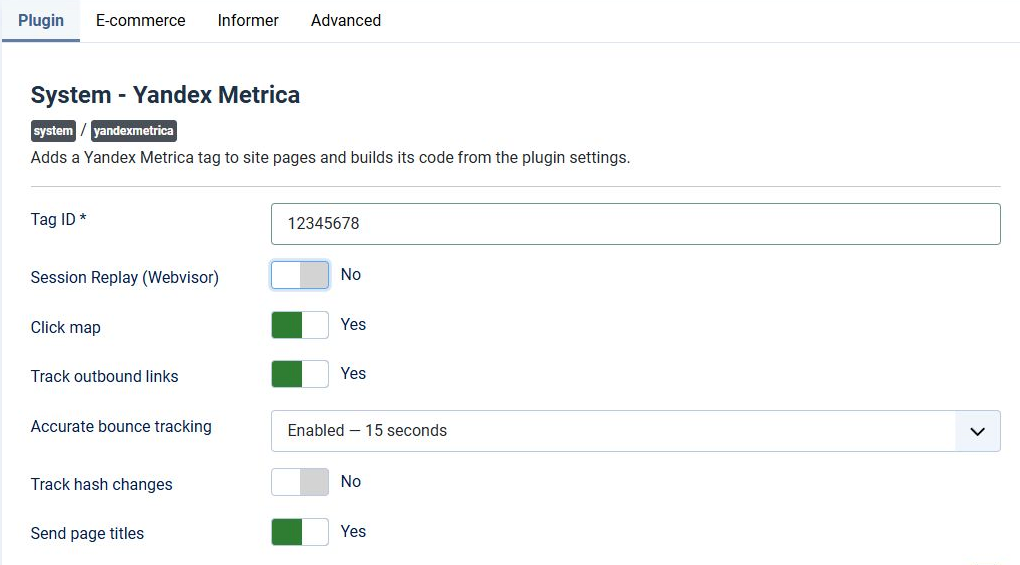
Yandex Metrica features
The plugin settings include:
- Webvisor;
- click map;
- link tracking;
- accurate bounce rate tracking;
- URL change tracking;
- page title sending;
- e-commerce support;
- additional Metrica initialization options;
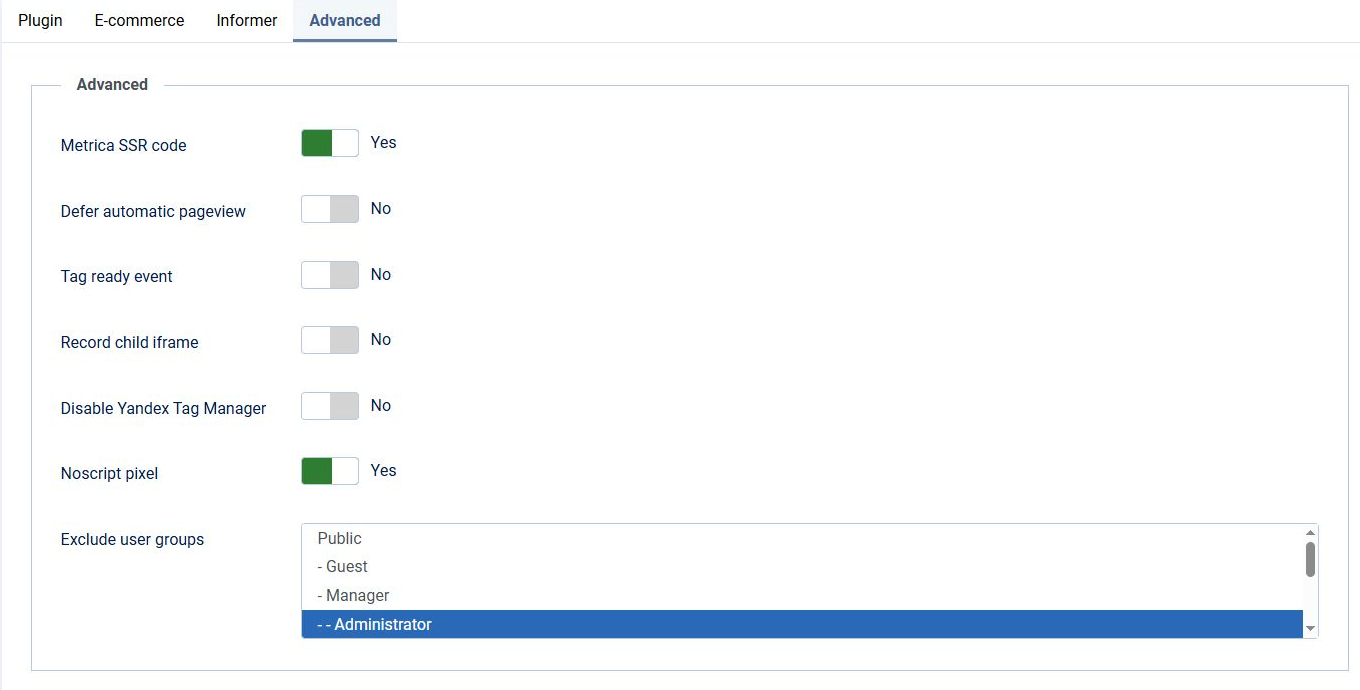
- exclusion of selected Joomla user groups from analytics.
The last option is useful, for example, if you want to exclude website administrator visits from your statistics.
Counter code
At the bottom of the Plugin tab, the automatically generated Counter Code is displayed. You can copy it with one click.
This also allows you to use Yandex Metrica Integrator only as a code generator: you can copy the generated code and install it on the website manually without enabling the plugin.
Yandex Metrica informer in Joomla
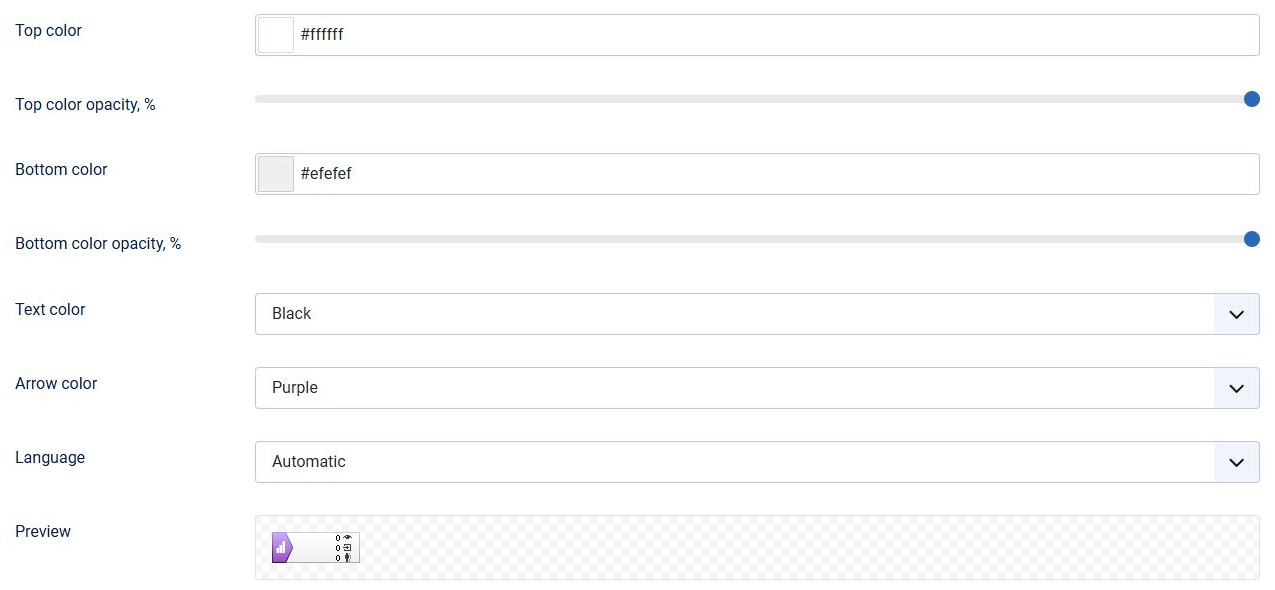
Yandex Metrica Integrator also lets you configure and display the Yandex Metrica informer — a small visual block showing website traffic statistics.
To configure it, open the Informer tab in the plugin settings.
Here you can:
- enable or disable automatic informer output;
- select a Joomla module position;
- place the informer at the beginning or end of the selected position;
- select the informer type;
- configure its size;
- select the displayed metric;
- change colors and transparency;
- preview the result live.
For automatic placement, select the required template module position in the Position field and choose At the beginning or At the end in the Order in position field.
No separate Joomla module is required for this method.
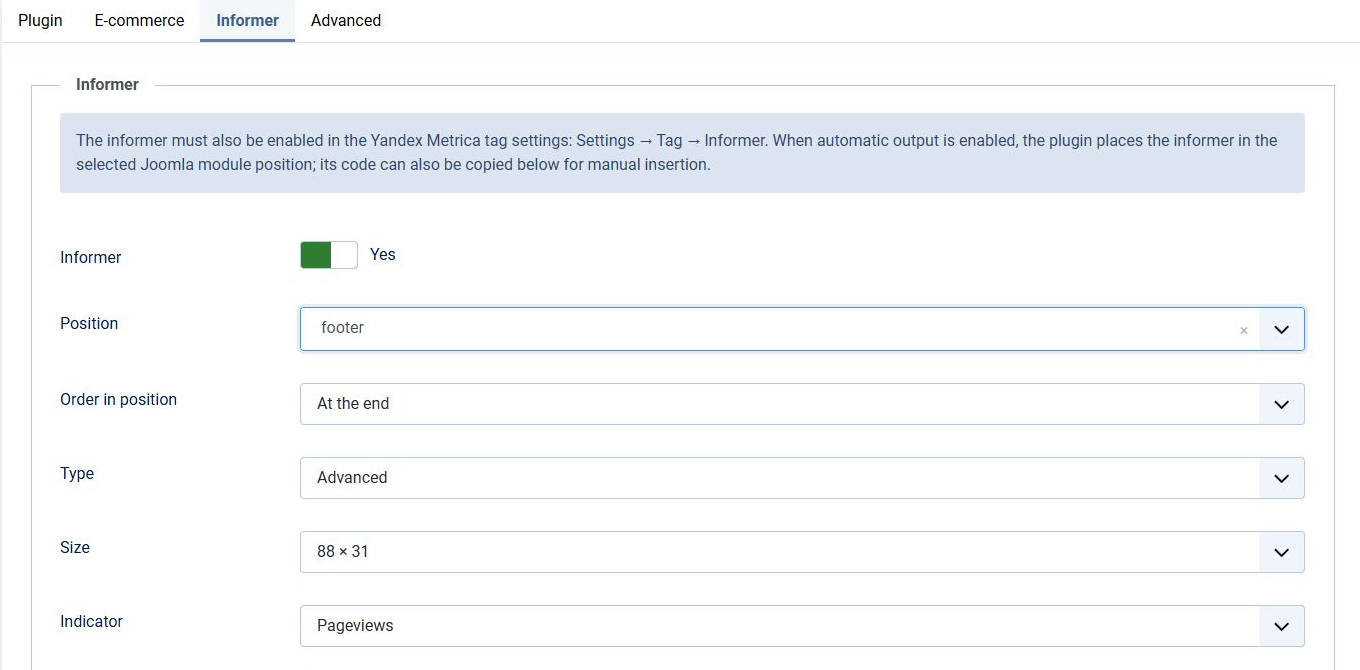
At the bottom of the tab, the ready-to-use Informer Code is displayed and can also be copied with one click.
If automatic output through the plugin is not suitable, copy this code and insert it manually, for example into Joomla's standard Custom HTML module. In this case, automatic informer output in the plugin settings can remain disabled.
Installing Yandex Metrica through a Custom HTML module
If using the system plugin is not possible, you can place the counter code through Joomla's standard Custom HTML module. However, this method is less universal: the module will only work on pages where the current template actually renders the selected module position.
- if necessary, configure the ability to add the
<script>tag using this guide; - go to System → Manage → Site Modules;
- click New;
- select the Custom module type;
- enter a title, for example “Yandex Metrica”, and disable title display;
- insert the counter code in HTML source mode rather than as regular text;
- select a position that is actually rendered by the active template on the required pages;
- set the status to Published;
- on the Menu Assignment tab, select On all pages;
- save the changes.
You can copy the ready-made code directly from the Yandex Metrica interface or generate it on the Plugin tab of Yandex Metrica Integrator and use it without enabling the plugin itself.
Inserting the counter code into a Joomla template
Another option is to add the Metrica code directly to the Joomla template. This method requires manual file changes and is usually less convenient than using the system plugin.
You can add custom code in several ways:
- Through the template settings.
Some templates allow you to add custom code through their own settings without editing files.
- By editing the template's index.php file through your hosting control panel or FTP.
- By editing the template file directly from the Joomla administrator panel.
To edit the template through the Joomla administrator panel:
- go to System → Site Templates;
- open the required template;
- find the index.php file;
- locate the opening
<body>tag or its version with attributes; - insert the full counter code as close as possible to the beginning of the
<body>element; - save the changes.
Yandex recommends installing the counter on all website pages as close to the beginning of the page as possible. If the JavaScript part of the code is placed in <head>, the <noscript> element must remain inside <body>.
How to check whether Yandex Metrica is working
After installation, make sure that the required counter is actually present on the website pages and is sending data.
- open Yandex Metrica and go to the settings of the required counter;
- find the Counter check section;
- enter a website page URL and run the check;
- repeat the check for several types of pages if the website uses different sections or templates.
For more detailed diagnostics, add the _ym_debug=2 parameter to the page URL, for example:
https://example.com/?_ym_debug=2
The debugger lets you check the installed counter ID, its parameters, page view tracking, e-commerce events, and other data.
If Metrica does not detect the counter, check whether it is being blocked by a browser extension, other scripts, Content Security Policy settings, or network restrictions.
Terms used:
Module, Package, Module position, Template, HTML, JavaScript