Table of contents
Extensions add new features to Joomla. This guide covers installation methods, compatibility checks and the steps needed to use components, modules, plugins and packages after installation.
Before you install
Download extensions from the developer's website or follow a listing in the official Joomla Extensions Directory (JED). Avoid repackaged downloads from unknown sources.
Before installation, check:
- support for your Joomla version;
- PHP, database and additional PHP module requirements;
- dependencies on other extensions;
- the developer's installation and update instructions.
Compatibility with one major Joomla version does not imply compatibility with the next. If the developer requires a backward compatibility plugin, take that requirement into account. Such a plugin does not make every old extension compatible.
Back up both the files and the database. Test a new extension on a staging copy with an environment similar to your live site.
Open the extension installer
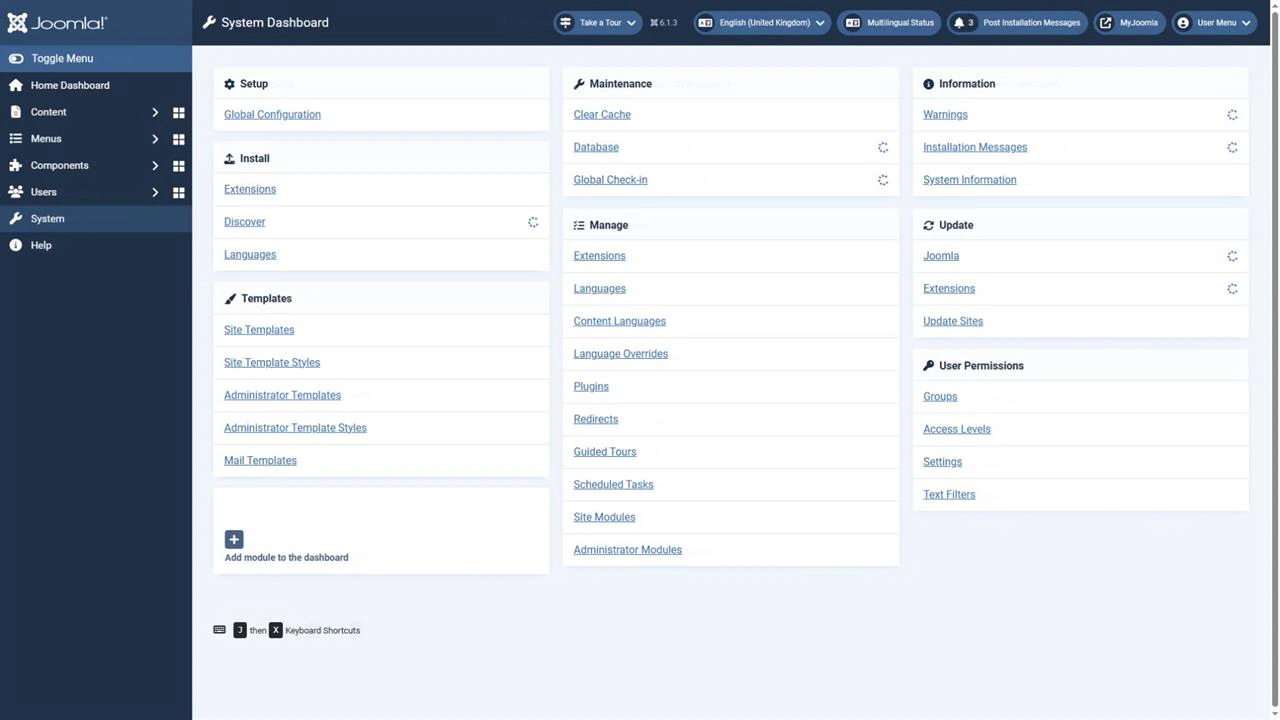
In the administrator area, open System and select Extensions under Install. The screenshots in this guide were taken in Joomla 6.1.3.
The main methods are uploading a package, installing from a folder, installing from a URL and using the JED catalogue. Available tabs depend on the installer plugins that are installed and enabled.
Upload Package File
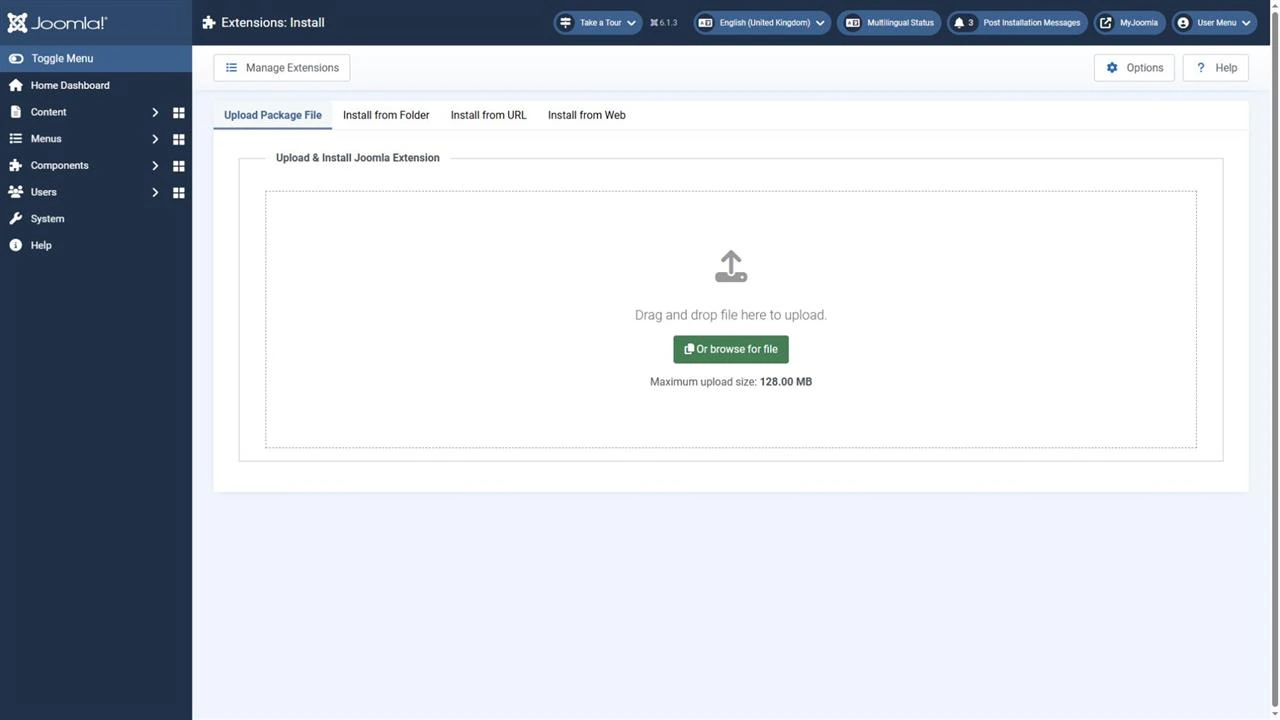
For most extensions, uploading the installation ZIP file is the simplest option.
- Download the package intended for installation.
- Open the Upload Package File tab.
- Drag the archive into the upload area or click Or browse for file.
- Wait for the result: uploading and installation start automatically after you select a file.
- Read the installer message and any additional instructions from the developer.
You normally do not need to extract a ready-to-install archive. If the download contains documentation and several separate packages, select the appropriate installation archive according to the developer's instructions.
Install from Folder
This method is useful when a package exceeds the browser upload size limit.
- Extract the installation archive.
- Upload its contents to a separate temporary folder on the server, preserving the file structure.
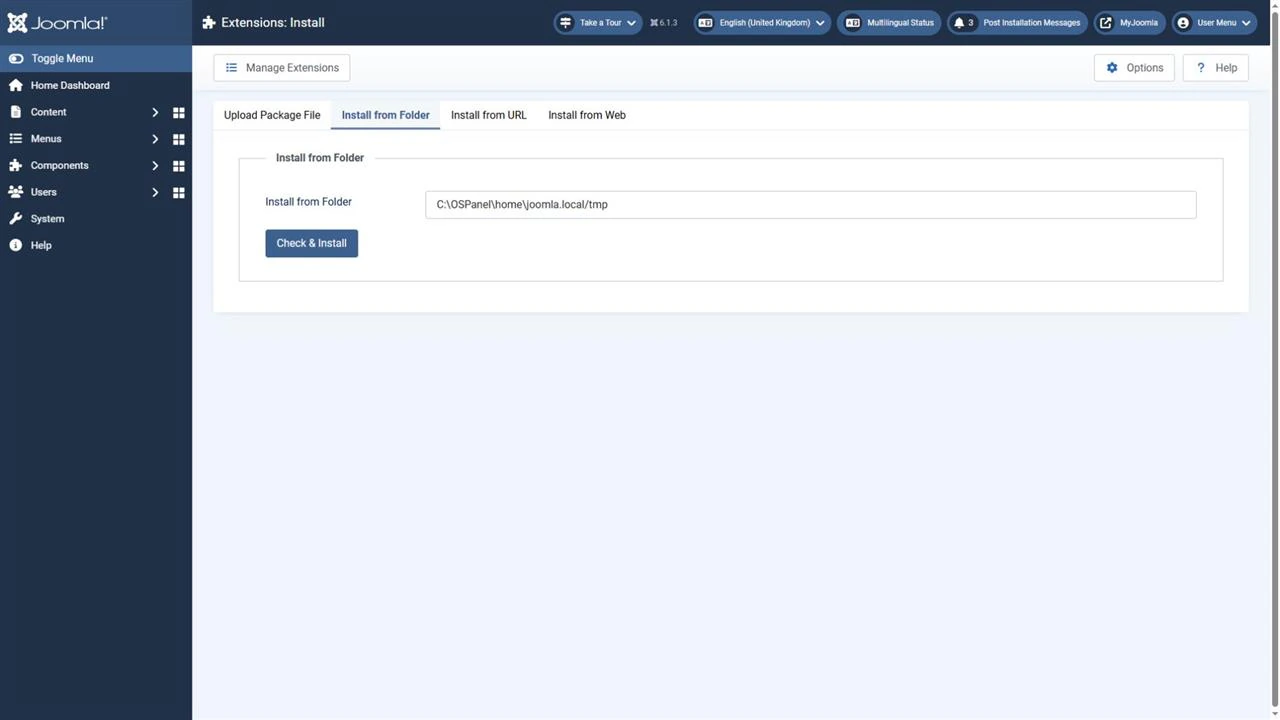
- Open the Install from Folder tab.
- Enter the full server filesystem path to the extracted package.
- Click Check & Install.
Enter a path on the server, not a web address or a folder on your computer. The selected folder must contain the package's installation XML manifest.
An ordinary folder containing several ZIP archives does not install them all automatically. A developer can provide a Joomla package to install related extensions together.
When finished, remove only the temporary folder you created for the installation files.
Install from URL
Joomla can download an installation archive directly from the developer's server.
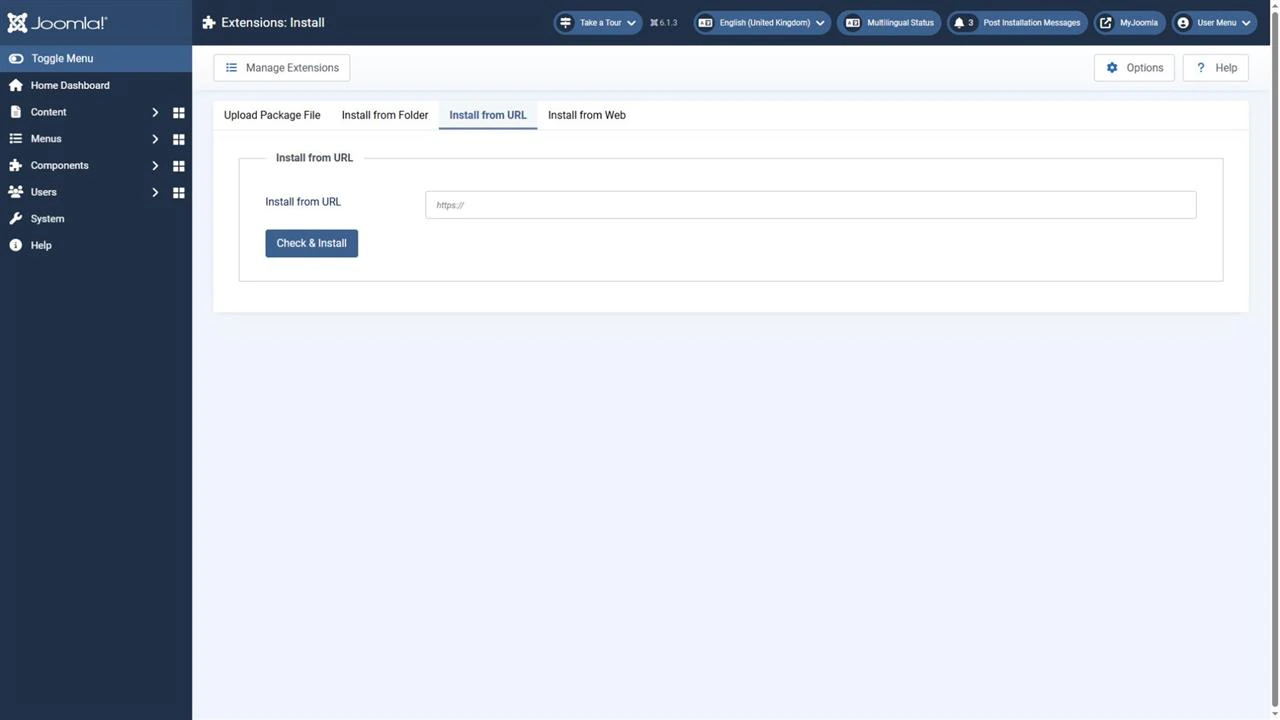
- Open the Install from URL tab.
- Paste the direct HTTPS address of an installation package from a trusted source.
- Click Check & Install.
- Wait for the result.
A product page or login page is not a direct link to the archive. If downloading requires a login, payment or a browser session, download the package normally and use file upload.
Do not disable HTTPS certificate verification to work around a certificate error. Ask the developer or hosting provider to investigate the cause.
Install from Web
The Install from Web tab lets you browse the official extensions directory from the administrator area.
Find an extension and read its description and requirements. Then use the available action: installation may be offered directly in the interface or may require a visit to the developer's website.
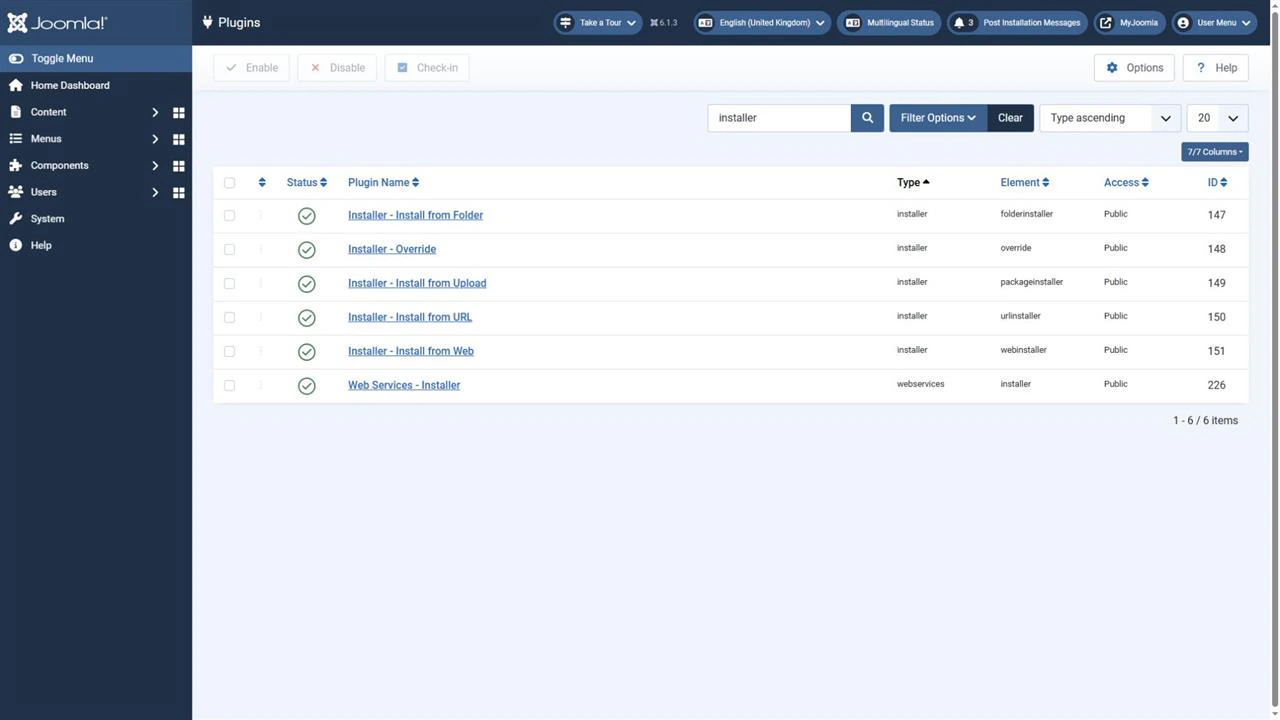
A free version does not necessarily support direct installation. If the tab is missing, check that the Installer - Install from Web plugin is installed and enabled.
Installer plugins are available under System → Manage → Plugins. Their status determines which installation methods are available.
Other installation tools
Joomla also provides separate tools for language packs and extension discovery.
System → Install → Languages adds available Joomla language packs.
System → Install → Discover can register supported extensions whose files are already in the appropriate site folders. This specialised method requires the files to be placed correctly. Do not treat it as a general solution for a damaged archive or an incompatible extension.
After installation
Installation adds files and registers the extension in Joomla. Enabling allows it to run, while configuration determines its behaviour. A successful installation does not by itself confirm that the required feature works.
Components and packages
A component may have its own administration section. If it provides pages for visitors, you may need to create a menu item of the appropriate type, add content and configure access.
Not every component provides a separate site page or its own administrator menu item.
A package groups several extensions, such as a component, a module and plugins. Install it as a whole unless the developer instructs otherwise. Afterwards, check the required parts: their status and settings may differ.
Modules and plugins
A module usually requires an instance to be configured: publication status, template position, menu assignment, access and language. If the installer does not create an instance, create one in the module list for the appropriate area: the site or the administrator interface.
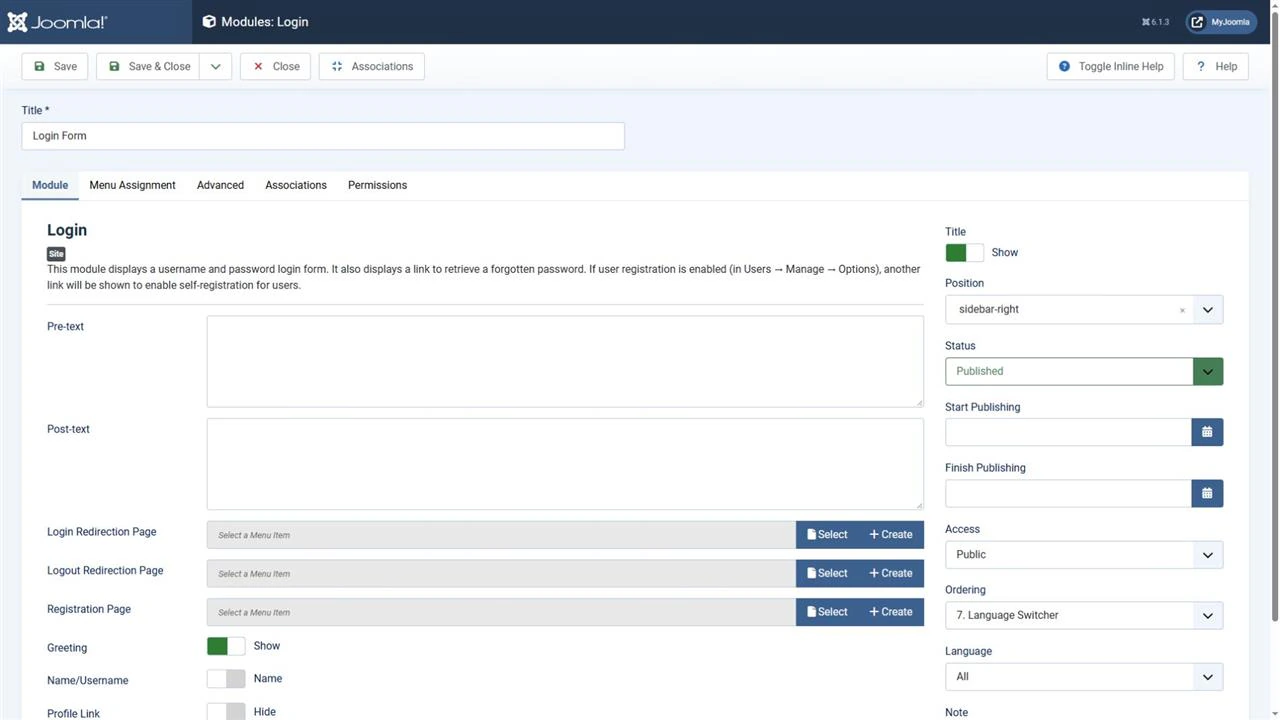
Use the Menu Assignment tab to select the pages on which the module should appear.
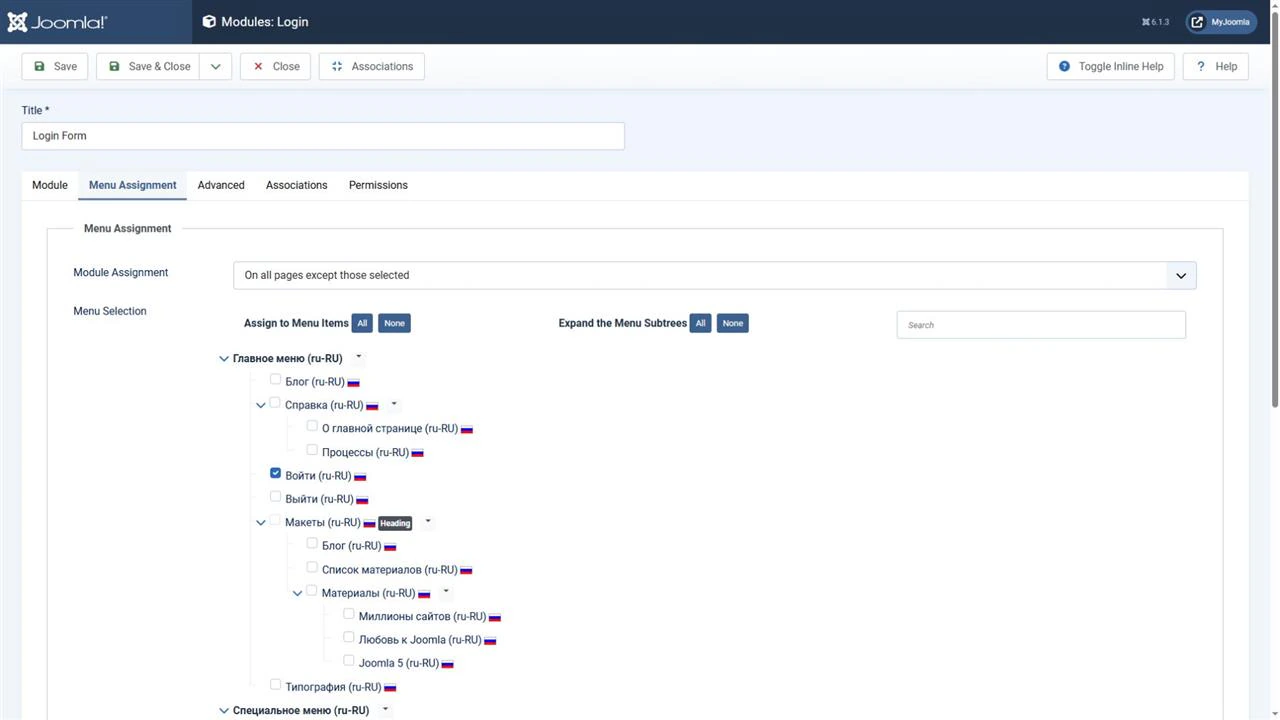
A plugin runs in response to particular events. Find it in the plugin list, check its settings and enable it if required. Some installers enable plugins automatically.
Check the actual outcome: the module on the intended page, the plugin's action or the component's feature.
Troubleshoot installation problems
First, record the exact error and the versions of Joomla, PHP and the extension. Avoid repeatedly attempting installation without identifying the cause.
Package or XML manifest not found
Make sure you downloaded an installation package rather than an HTML page, source code or documentation archive. Download the file again from the official source.
For installation from a folder, check the path and manifest location. Extract an outer archive containing multiple packages only when the developer's instructions require it.
Do not edit the manifest by guesswork or remove installer checks.
Uploading or extracting the archive fails
Compare the file size with the limit displayed by the installer. Check available disk space and whether the temporary folders are writable.
Ask your hosting administrator for help if server limits or permissions need changing. Do not give every file and folder 777 permissions. Installation from a folder is an option for a large package.
Installation is rejected or only partly completed
Possible causes include an unsupported PHP or Joomla version, a missing dependency, or a filesystem or database error.
Use a compatible release and follow the developer's recommendations. Do not bypass version checks, access restrictions or server security protections.
After a partial installation, first determine what changed. Do not automatically uninstall the extension: removal may also delete its data. If necessary, restore a consistent backup of both files and database.
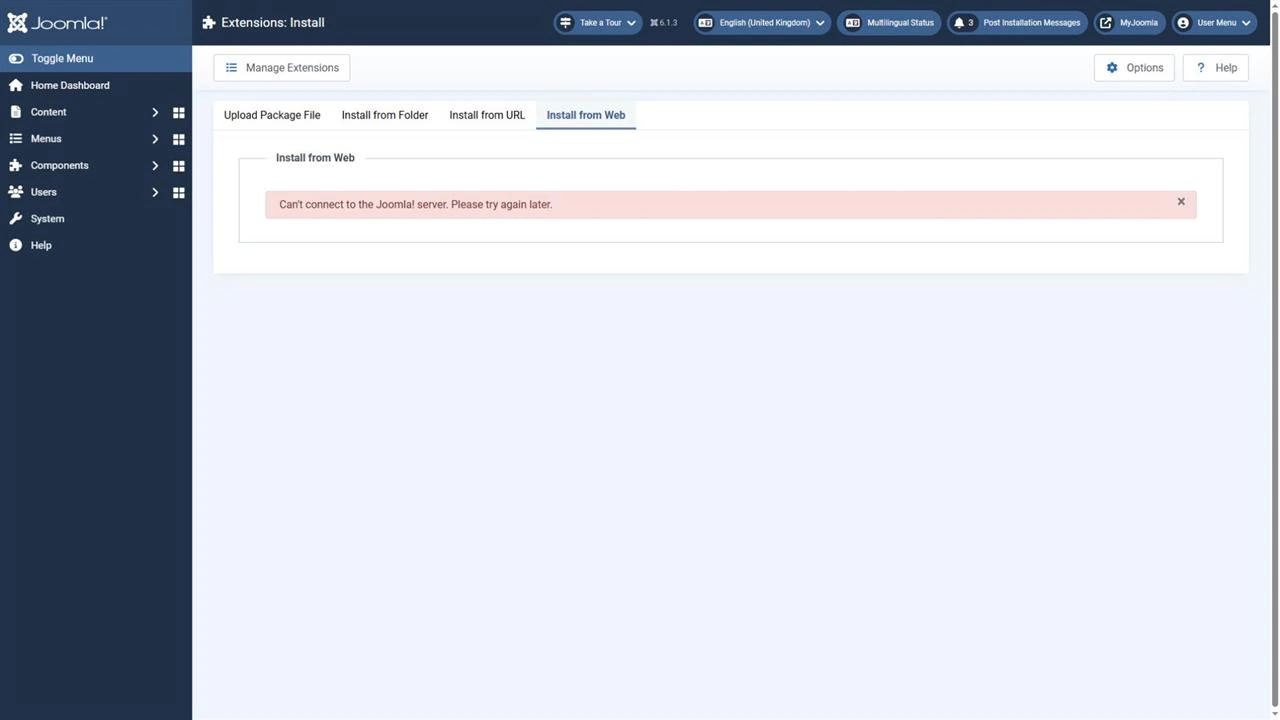
The JED catalogue does not load
An enabled installer plugin does not guarantee that the remote catalogue is reachable. If Install from Web reports a connection error, try again later. If the problem persists, investigate connectivity with your hosting provider.
You can download a compatible package from the developer's official website and use Upload Package File. Do not disable security checks to make the catalogue load.
Installation succeeds, but the feature does not work
Check that the plugin is enabled, the component is configured and dependencies are satisfied. For modules, also check publication status, position, menu assignment, access and language.
If a PHP error appears or the site stops opening, investigate on a test copy and send the exact message to the developer. Do not expose detailed diagnostic output publicly on the live site.
Verify the result
Open the relevant site and administrator pages after installation. Test the extension's main actions and access for different user groups.
Deploy the extension to the live site after testing. Keep a backup and apply subsequent updates according to the developer's instructions.