Table of contents
Install Joomla 6 in your browser: prepare the files and database, create an administrator account, add a language and check the initial site settings. This guide covers a fresh installation on web hosting or a local server. The screenshots show Joomla 6.2.0.
What you need
Joomla needs a web server, PHP and a supported database. Your hosting provider supplies these services. On your computer, you can run them with OpenServer.
Check the software versions before uploading the installation package. For a new installation, choose supported versions that still receive updates from their developers.
| Software | Minimum supported version | Joomla project recommendation |
|---|---|---|
| PHP | 8.3.0 | 8.4 |
| MySQL | 8.0.13 | 8.4 |
| MariaDB | 10.6 | 12.0 |
| PostgreSQL | 14.0 | 17.6 |
| Apache | 2.4 | 2.4 |
| Nginx | 1.26 | 1.29 |
| Microsoft IIS | 10 | 10 |
You need one web server and one database system. The steps below use MySQL or MariaDB with the MySQLi driver.
Joomla also lists lower technical minimums of MariaDB 10.4 and PostgreSQL 12.0. These are below the supported versions, so do not use them as the target for a new site.
PHP must provide JSON, SimpleXML, DOM, Zlib, GD and a driver for your database. A MySQLi connection requires the corresponding PHP extension. The mbstring extension is recommended.
Allow the following PHP limits for installation and subsequent use:
memory_limit— at least 256 MB.upload_max_filesize— 64 MB or more.post_max_size— no lower thanupload_max_filesize.max_execution_time— at least 30 seconds.
Low upload limits can prevent you from installing large extensions. The server also needs HTTPS access to the relevant Joomla services to download languages and updates.
Prepare the files and database
A fresh installation needs its own site folder and an empty database. This is particularly important when other sites already run on the server.
Upload the installation package
Open the Joomla downloads page on joomla.center and select the Joomla 6 full installation package. An update package is intended for an existing site.
Extract the archive into the new site's document root. This folder should contain index.php, the administrator, installation and libraries folders, and the other distribution files.
If you extract Joomla into a subfolder, that folder becomes part of the site's address. For example, files in public_html/joomla are normally available at an address ending in /joomla/.
On a local server, create a separate project. Select suitable PHP and database versions and make sure the services are running.
Create the database
Create an empty database in your hosting control panel or database management tool. For MySQL and MariaDB, use the utf8mb4 character set.
Create a separate database user and grant access to this site's database. Prepare four values:
- The database server address and its port if it differs from the default.
- The database name.
- The database username.
- The password for that user.
On hosting, the address is often localhost, but your provider may specify a different one. In OpenServer, the address depends on the selected module and its settings.
Do not treat root with an empty password as a universal connection method. The Joomla administrator account and the database user have different purposes.
Complete the installer
Open the new site's address in your browser. If the files are in the correct folder and the server is configured, the Joomla installer will appear.
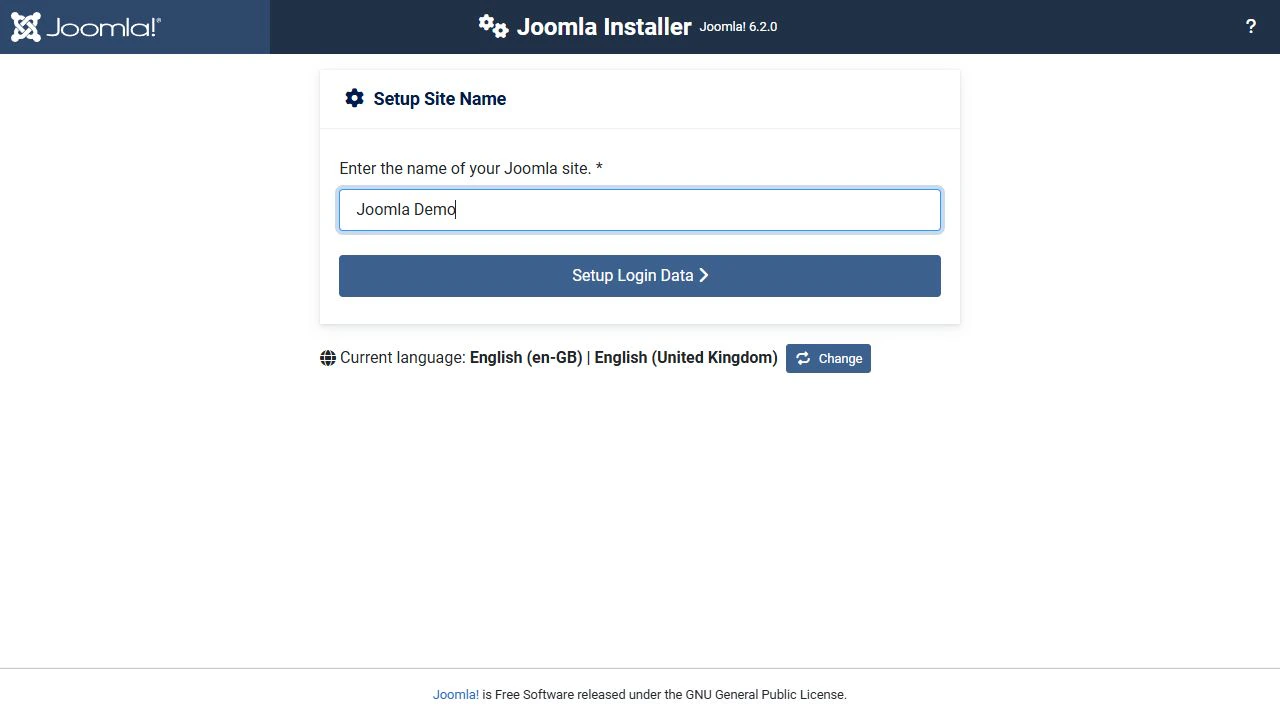
Enter the site name
Enter a name for your site. Joomla will use it in the interface. You can change it later in Global Configuration.
Use Change to change the installation language. Selecting an installation language does not install that language pack for the site itself.
Select Setup Login Data.
Create an administrator account
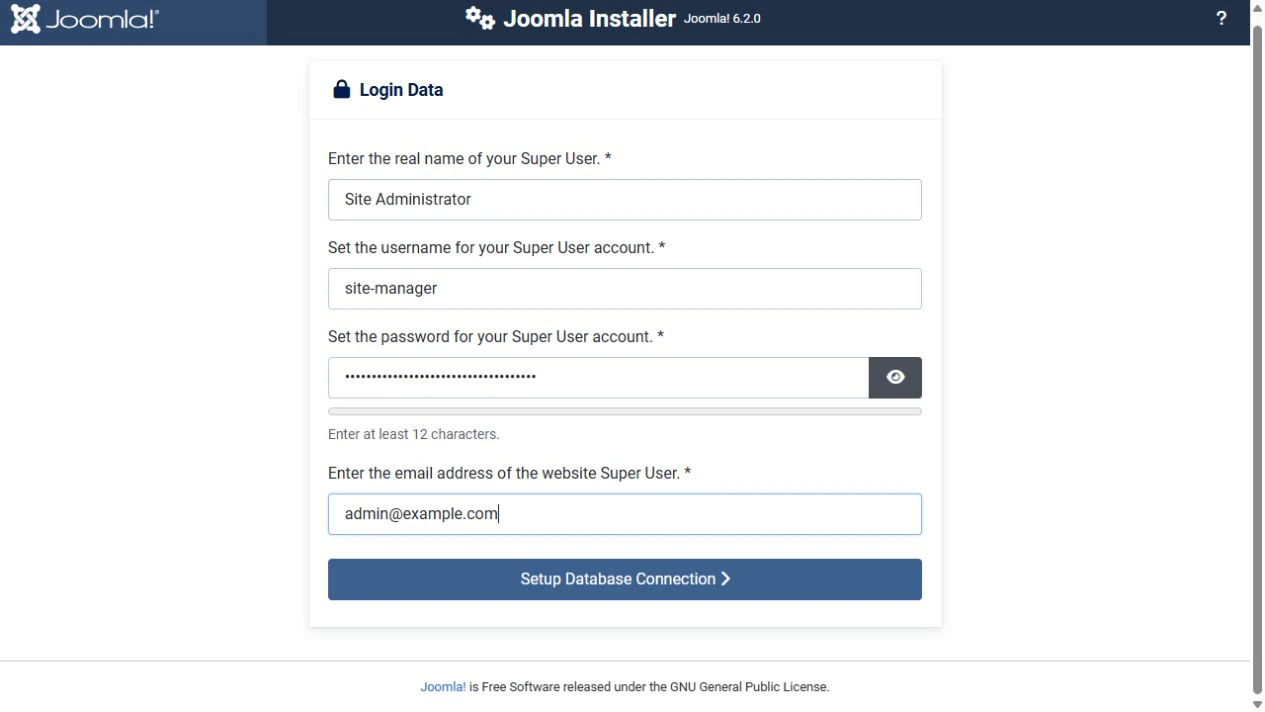
Enter the details of the account you will use to manage the site:
- Real name — the user's display name.
- Username — the name used to sign in to the administrator interface.
- Password — a unique password with at least 12 characters.
- Email address — a working address you can access.
Use a password generated by a password manager. Enter a real email address for a working site. The address in the screenshot is an example.
Select Setup Database Connection.
Connect the database
Select MySQLi and enter the details you prepared.
Host name is the MySQL or MariaDB server address. For a non-standard port, use the format address:port.
Username and password are the credentials of the database user created before installation. These are separate from the Joomla administrator credentials.
Database name is the exact name of the empty database you prepared.
Table prefix is the beginning of Joomla's table names. You can normally keep the automatically generated value.
Connection Encryption controls the database connection. If your provider requires an encrypted connection, use its supplied settings and certificates.
The screenshot shows the address and port of a separate local example. Enter your own values for your site.
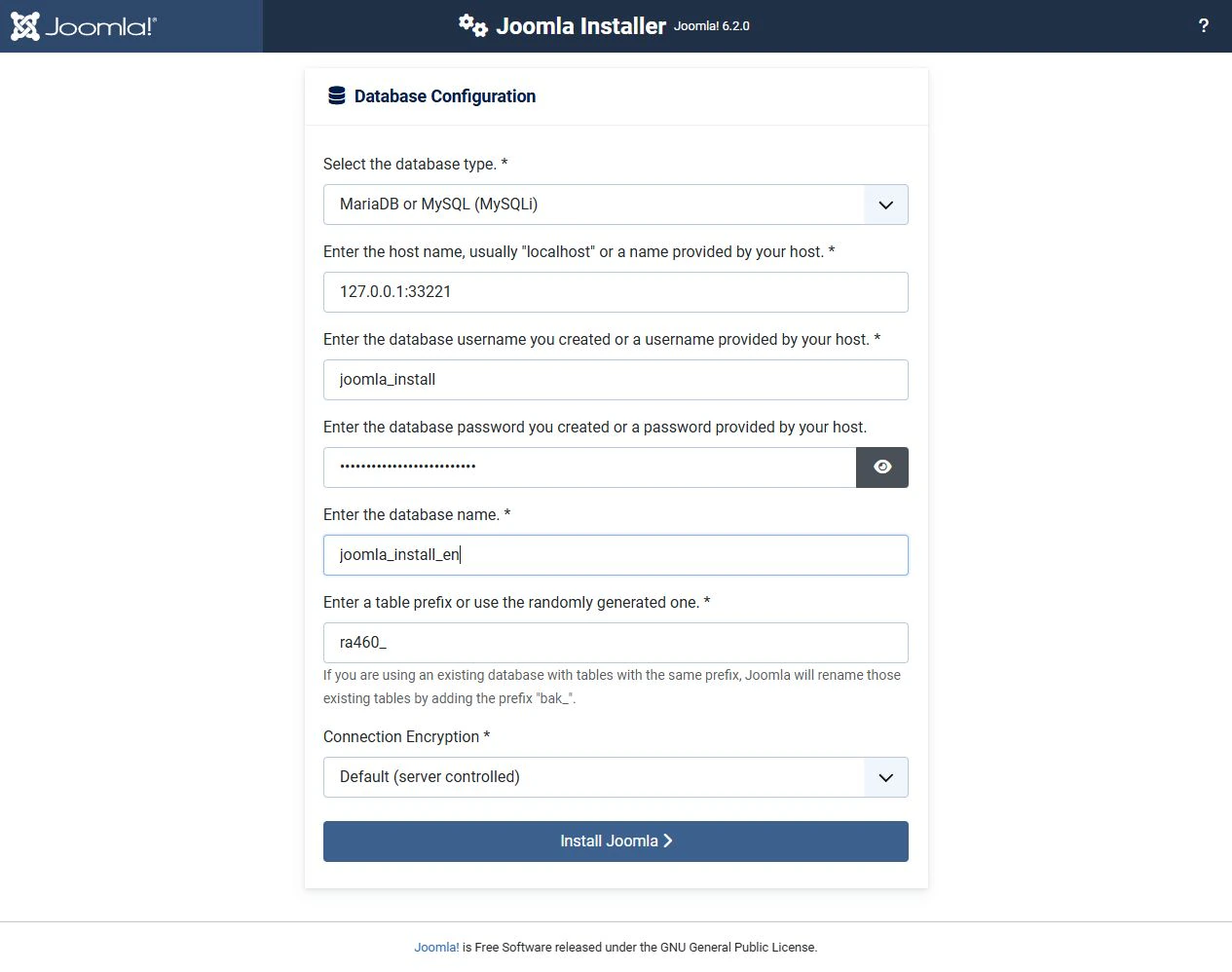
Check the fields, select Install Joomla and wait for the process to finish.
Install a language
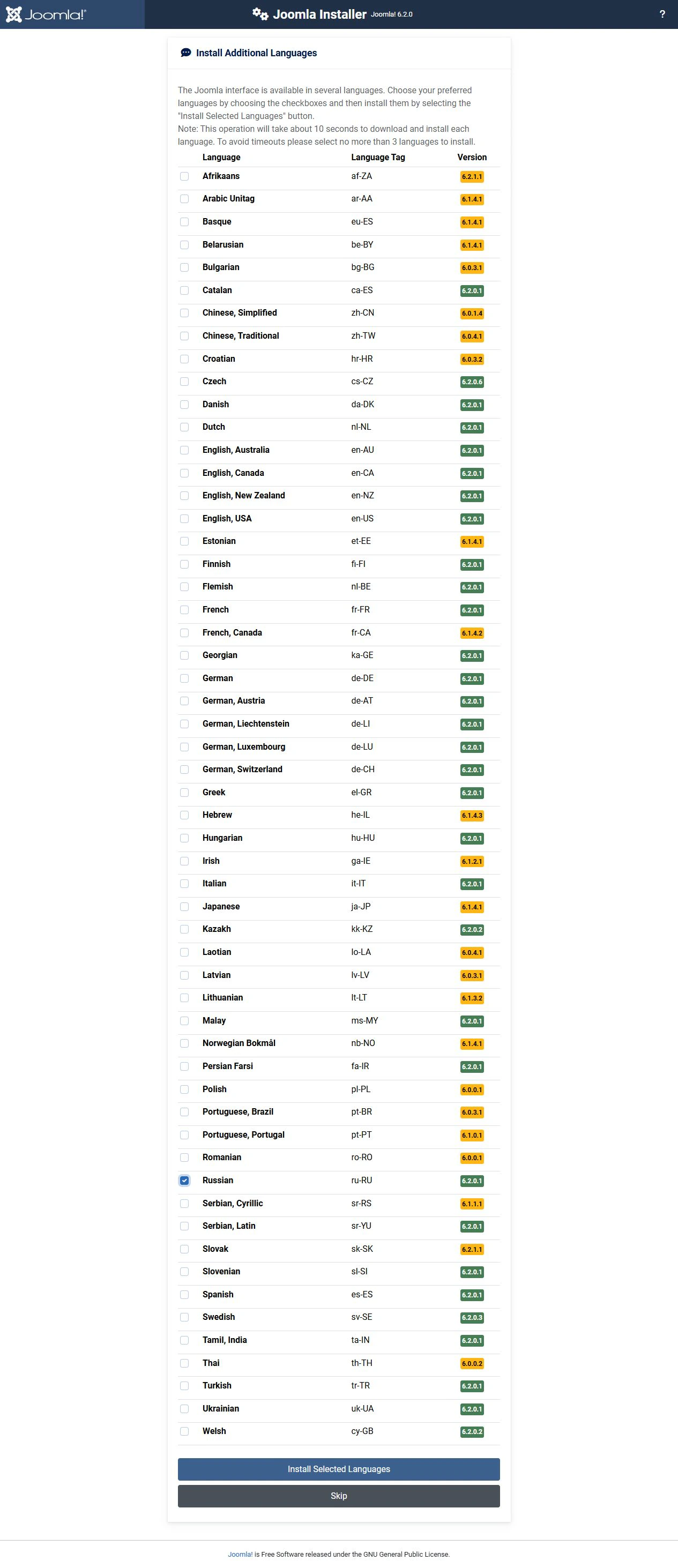
After installation succeeds, select Install Additional Languages. To add Russian, select Russian with the tag ru-RU, then select Install Selected Languages.
Select no more than three packages at a time to reduce the risk of a timeout.
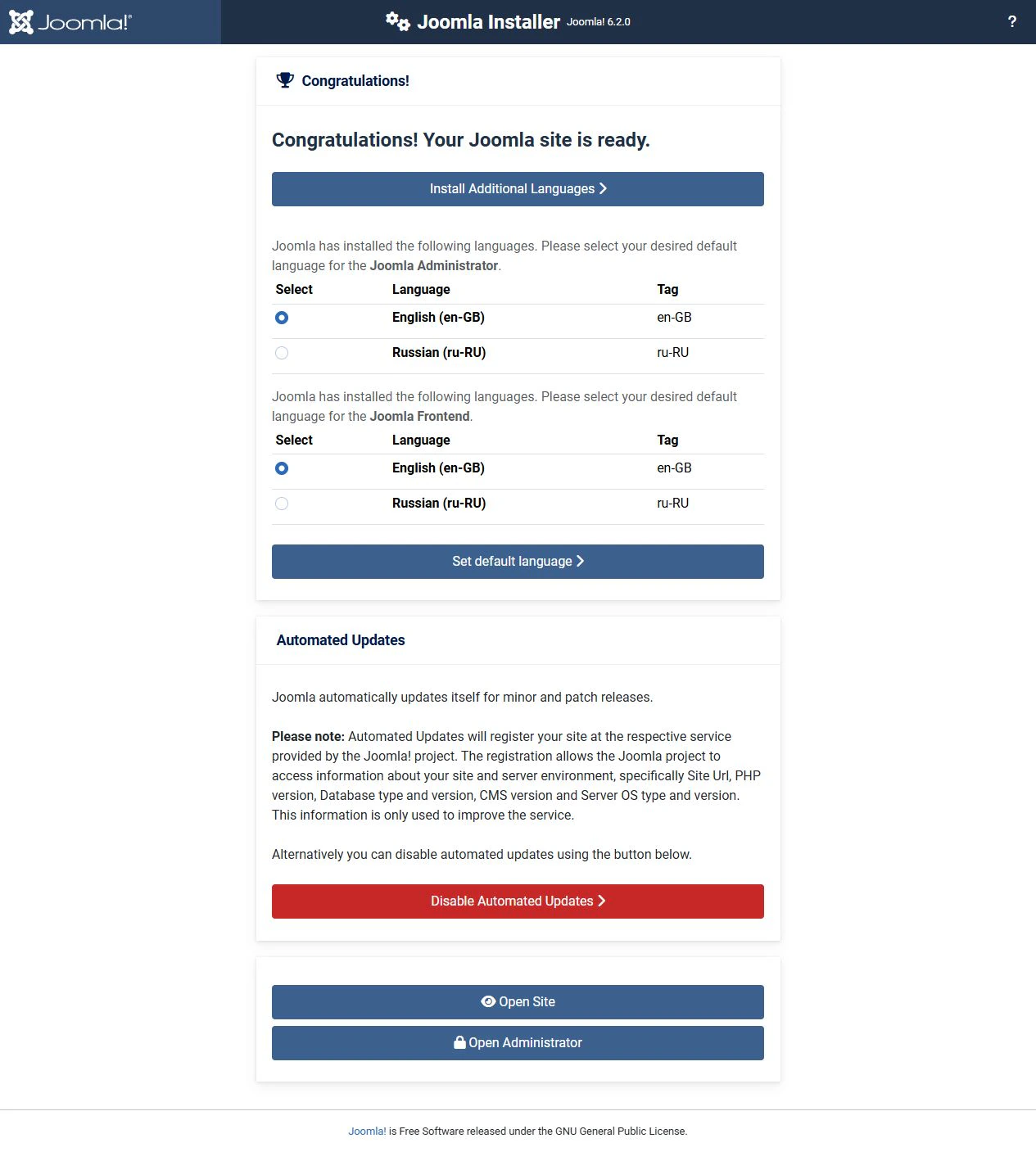
After the package is installed, choose the default language independently for the administrator interface and the site. For an English-language site, keep English (en-GB) in both tables and select Set default language. To use Russian, select Russian (ru-RU) in the corresponding table.
If the language server is unavailable, finish the installation. You can add a language later through System → Install → Languages.
Finish the installation
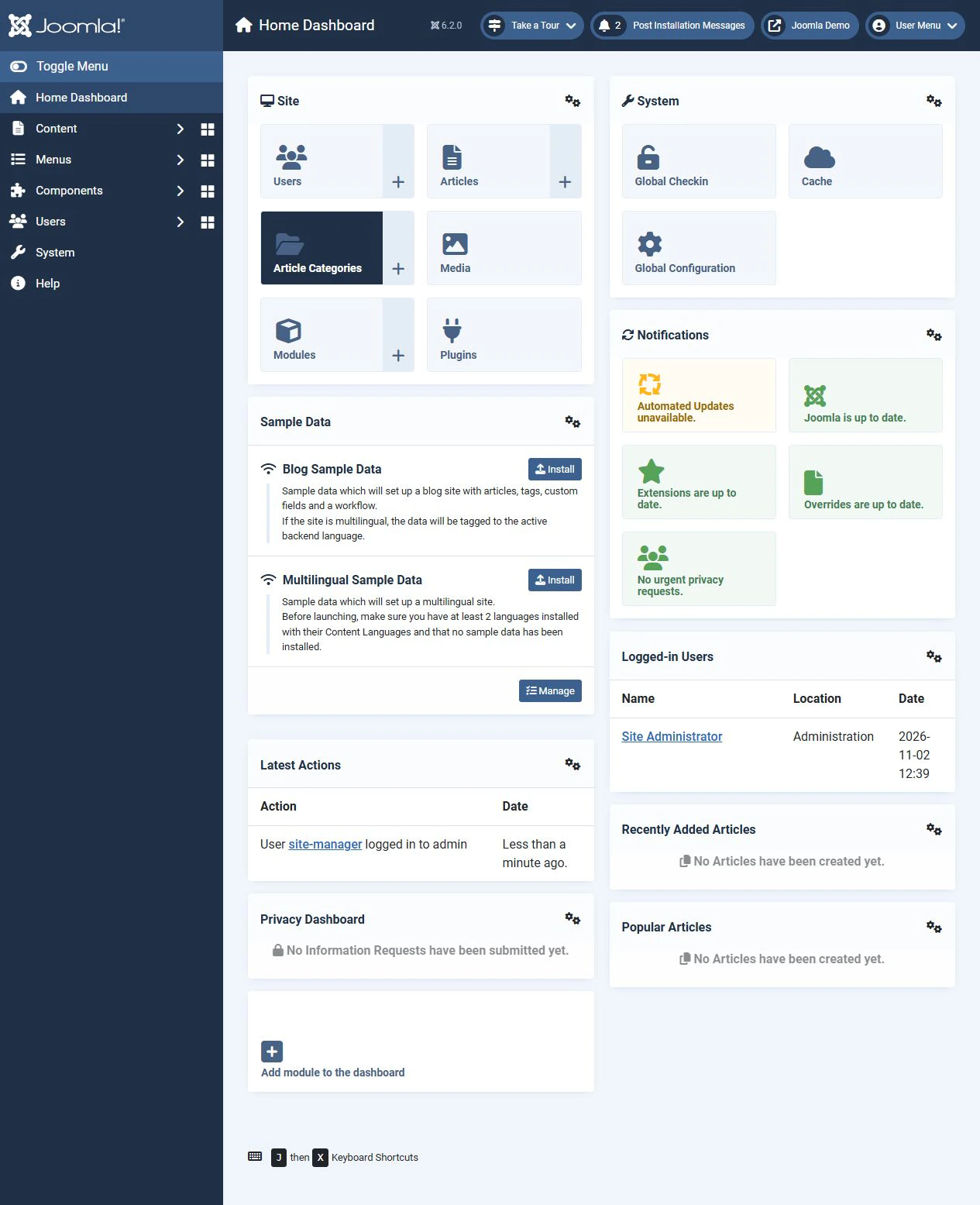
Select Open Administrator and sign in with the administrator username and password created in the installer.
With the normal installation package, Joomla removes the installation files when you finish using the installer. If it reports that removal failed, follow the instruction in the message using your file manager.
Also check the public side of the site. An empty site without articles or sample content is a normal result of a fresh installation.
The final screen may offer automated updates. These require the site to be reachable from the internet. A local site needs manual updates.
Check the initial settings
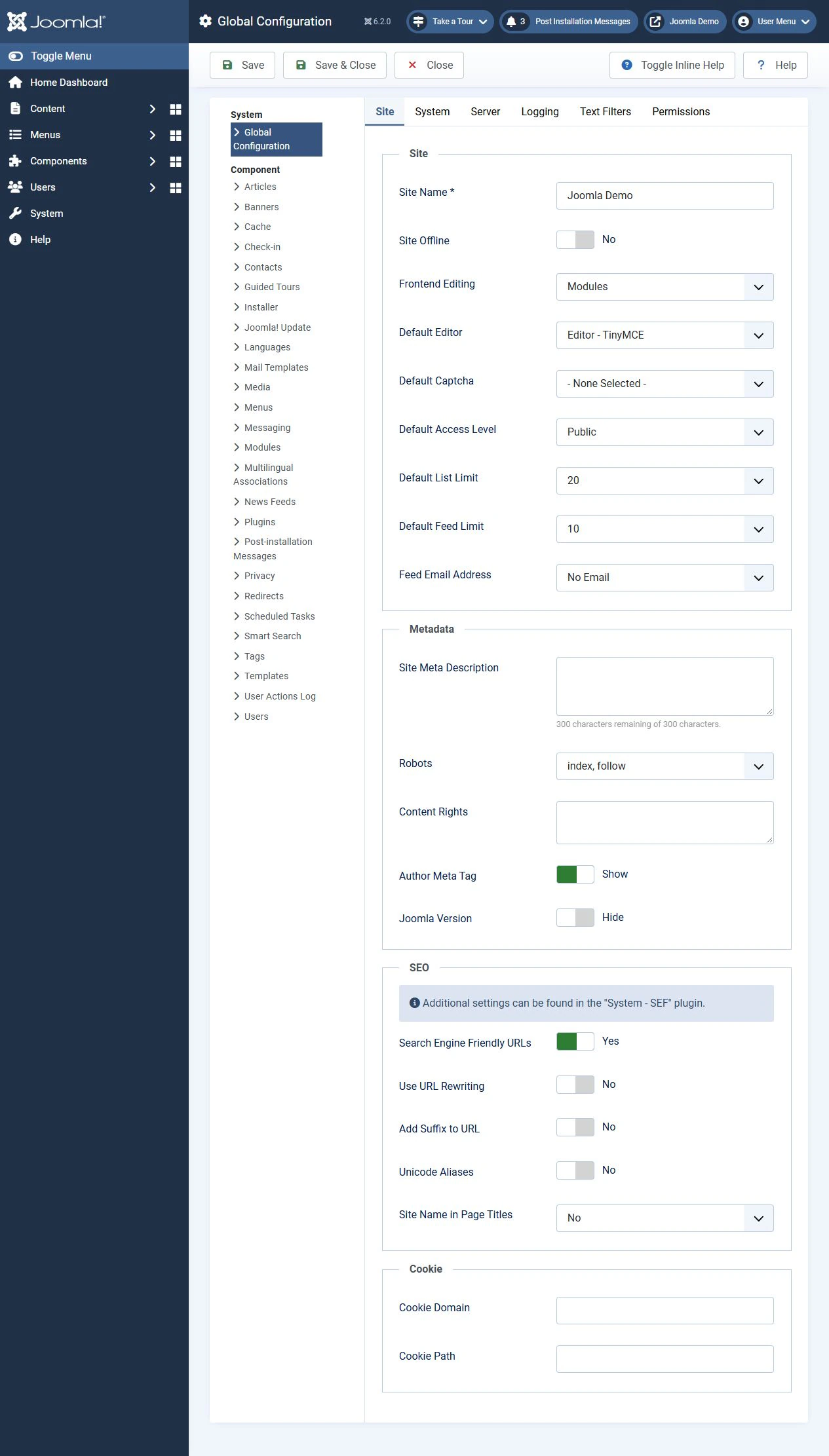
Open System → Global Configuration to review the main settings for the new site.
Site name and page addresses
On the Site tab, check the site name and enter a site description.
In the SEO section, check Search Engine Friendly URLs. The Use URL Rewriting setting, which removes index.php from addresses, needs web server configuration.
Apache normally uses an .htaccess file prepared from htaccess.txt and the mod_rewrite module. Nginx needs rules in its server configuration. Renaming the file alone does not configure Nginx.
After making a change, check both the home page and internal pages. If errors appear, restore the previous setting and check the server rules.
Time zone, HTTPS and email
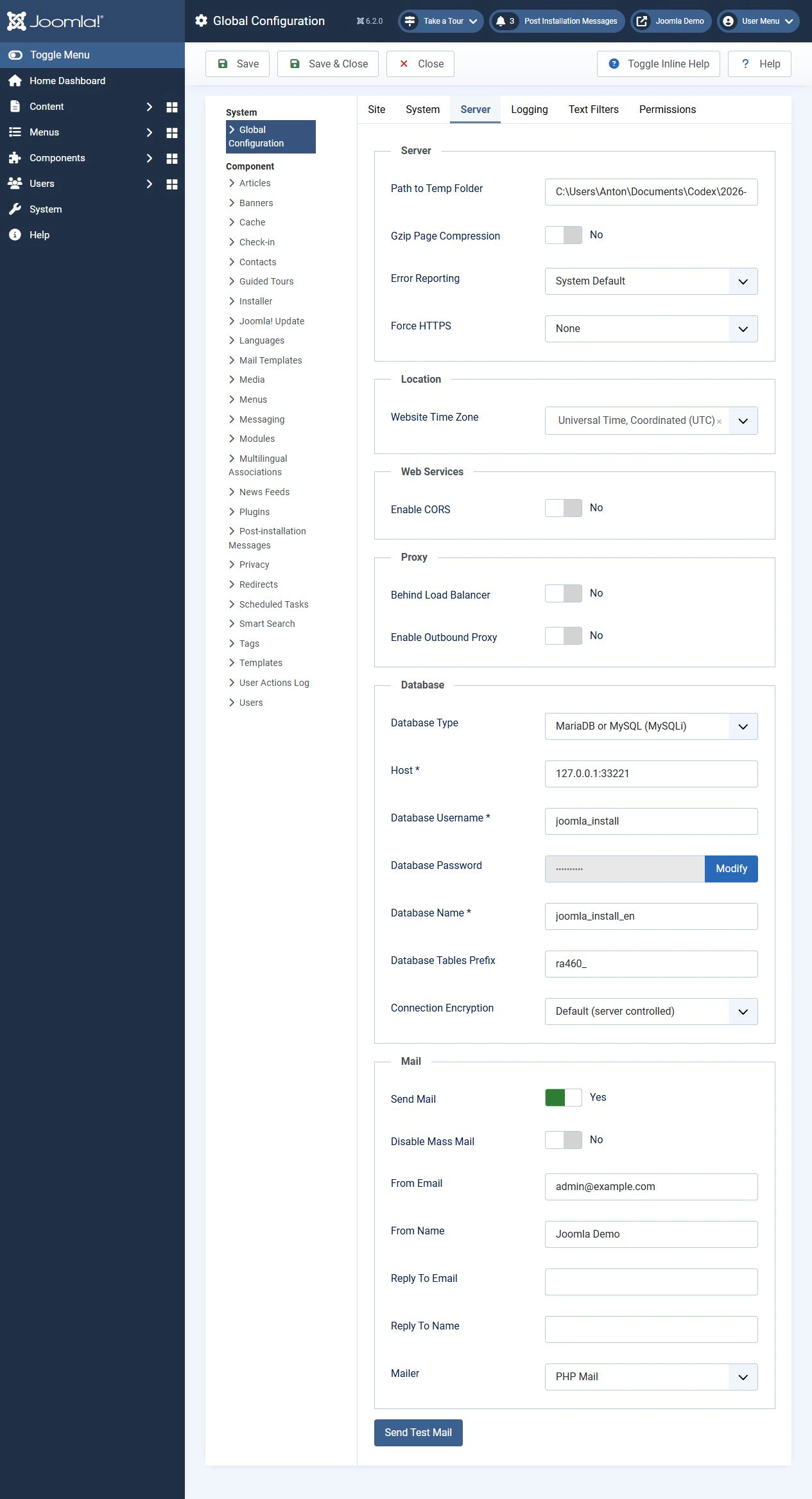
On the Server tab, choose the site's time zone.
For a working site, first configure a valid HTTPS certificate and check that the site and administrator interface open over HTTPS. You can then force HTTPS for the entire site in Joomla.
In Mail, enter the site's email address and sender name. Select a mailer supported by your hosting provider. For SMTP, use your mail service's settings.
Select Send Test Mail and check that the message reaches the mailbox.
Updates and a backup
Check for updates to Joomla and the installed language packs. Read the post-installation messages.
Install sample data only when you need it for learning. You can skip it for a working site with its own structure.
After completing the basic settings, back up the files and database. Keep the backup before installing a template or extensions.
If installation fails
Start with the error message and check the stage at which the installer stopped.
| Problem | What to check |
|---|---|
| The installer does not open | The site address, document root, archive extraction and web server |
| The database connection fails | Whether MySQL or MariaDB is running, the address, port, database name and user credentials |
| Insufficient permissions | The user's database access and write permissions on the site folders |
| A language will not install | The server's HTTPS access to Joomla services and the download error message |
| Installation stops | PHP and web server logs, memory and execution time limits |
| Internal pages return 404 | URL rewriting and the web server rules |
Do not repeat the installation in a database containing tables from the previous attempt until you understand the failure. Use a separate empty database for a new clean attempt.
What comes next
After installing Joomla, both the site and administrator interface should open, the administrator login should work, and the chosen interface languages should be available. Check email, updates and backups, then move on to menus, articles, templates and extensions.