
Table of contents
Caching helps Joomla generate pages faster and reduces server load. This guide explains the caching modes, where to find their settings in Joomla 3–6, and how to avoid serving outdated content.
How caching works
When someone opens a page, Joomla runs PHP code, retrieves data from the database and builds the HTML. Caching stores the result of some of this work so it can be reused for subsequent requests.
Joomla can cache component output, individual modules or complete pages. The file cache handler writes the results to disk; other handlers use their respective storage systems.
The benefit is less repeated processing. The trade-off is that visitors may see a stored version until it expires or the cache is cleared.
Joomla caching modes
Joomla 3, 4, 5 and 6 follow the same general approach: conservative and progressive caching are selected in Global Configuration, while page caching is enabled through a separate plugin.
Conservative caching
Conservative caching allows Joomla to cache component output and individual modules.
Each component determines which of its views can be cached. Modules also use their own settings: if a module supports caching, its Advanced tab lets you follow the global setting or disable caching.
This mode is a useful starting point because it allows you to exclude dynamic modules. However, you still need to check shopping carts, forms and other interactive features.
Progressive caching
Progressive caching stores the output of a group of modules together. Disabling caching in an individual module does not exclude it from this cache.
This does not introduce a separate, stricter set of rules for caching components: the main difference concerns module processing.
Use progressive caching carefully when module content depends on visitor actions. For example, a guest’s shopping cart can change without the visitor signing in.
Page caching
The System – Page Cache plugin stores complete pages. When the same URL is requested again, Joomla can return the stored result.
This is useful for public pages that show the same content to different visitors. Shopping carts, checkout pages and other pages containing individual data require exclusions.
The plugin works for guests. However, being logged out does not mean a visitor receives no personalised content: the site may use cookies, a selected region or items in a shopping cart.
Where to find settings in each version
The main differences between versions concern navigation in the administrator interface. Labels may vary slightly between releases and language packs.
| Task | Joomla 3 | Joomla 4, 5 and 6 |
|---|---|---|
| Open global cache settings | System → Global Configuration → System | System → Global Configuration → System |
| Open plugins | Extensions → Plugins | System → Manage → Plugins |
| Configure a site module | Extensions → Modules | Content → Site Modules |
| Clear the cache | System → Clear Cache | System → Maintenance → Clear Cache |
Joomla 3 instructions remain useful when maintaining older sites. However, do not assume that button locations and directory paths apply unchanged to newer versions.
Configuring the system cache
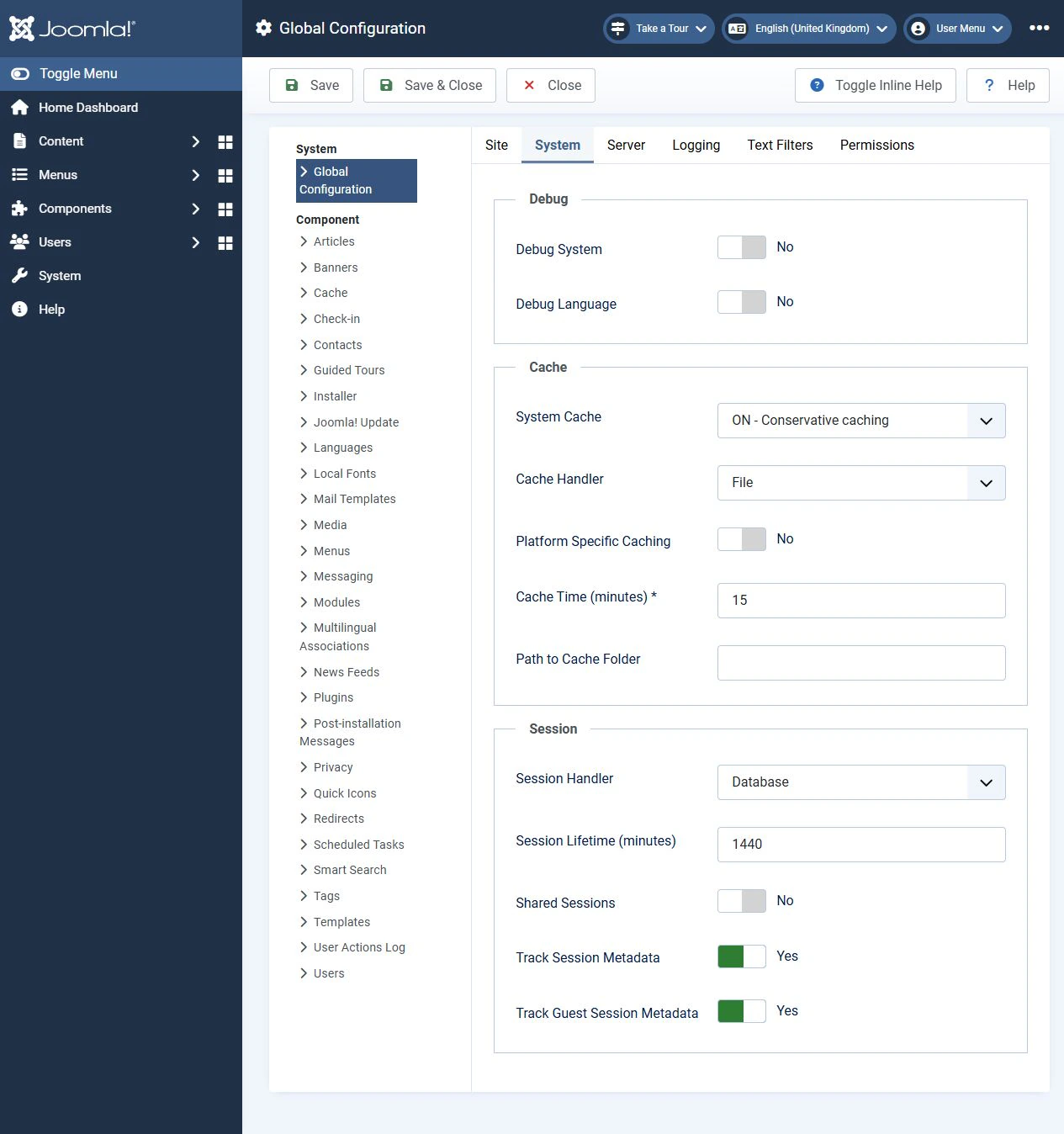
Open Global Configuration → System and find the cache settings. In newer versions, some fields appear only after you select conservative or progressive caching.
Basic settings
For an initial setup, you can use the following values:
- System Cache: conservative caching.
- Cache Handler: File.
- Cache Time: 15 minutes as a starting point for testing.
- Platform Specific Caching: No, if the site uses a standard responsive template.
- Path to Cache Folder: leave empty unless you need a separate directory.
The handler determines where cached data is stored. The availability of other handlers depends on the Joomla version and server environment. It is incorrect to describe all cache handlers as precompilers.
Choose the cache time according to how long information can remain out of date. If a change must become visible within a few minutes, a long cache lifetime is unsuitable. There is no universal requirement to limit caching to exactly one day.
Global Configuration uses minutes, while standard module cache settings use seconds. Therefore, 900 seconds equals 15 minutes.
Cache directory and platform separation
An empty path field tells Joomla to use its default cache directory. This is not always the cache folder in the site root.
For example, Joomla 3.10 uses cache as the default directory for the public site cache, while Joomla 5.4 and 6 use administrator/cache. A custom path or installation-specific configuration can change the actual location.
Platform-specific caching is useful when the server generates different HTML for different device types. If the same HTML adapts to screen width through CSS, this setting is usually unnecessary simply to support mobile devices.
Configuring module caching
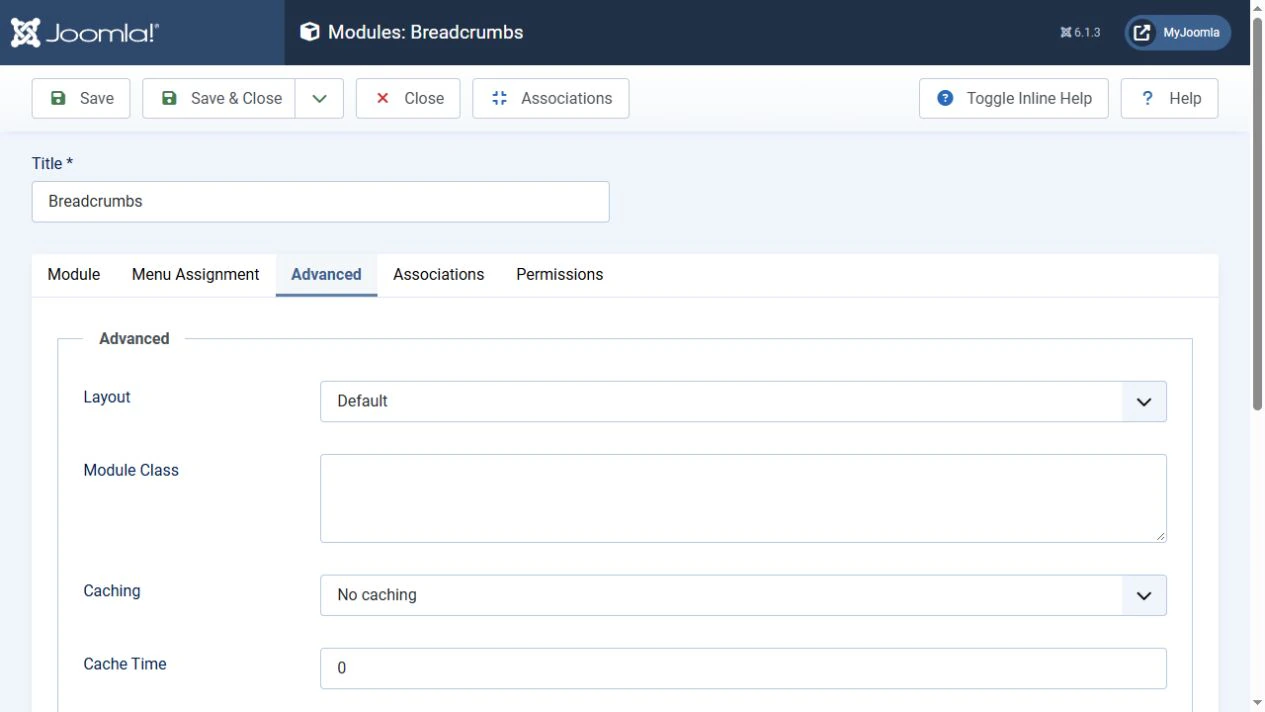
With conservative caching selected, open the required site module and go to the Advanced tab.
If the module supports caching, check its caching setting:
- Use Global allows caching according to the global setting.
- No caching disables the module’s own cache.
This setting does not prevent the module from appearing in a cached page. If the page cache plugin returns stored HTML, the module’s output is not generated again.
Check the Breadcrumbs module in particular when navigating between articles in the same category. If the trail retains the previous page’s title, temporarily disable page caching, select conservative caching, disable caching for the module itself and clear the existing cache.
Use this procedure for diagnosis. It would be too broad to claim that Breadcrumbs always works incorrectly with caching in every Joomla version.
Configuring page caching
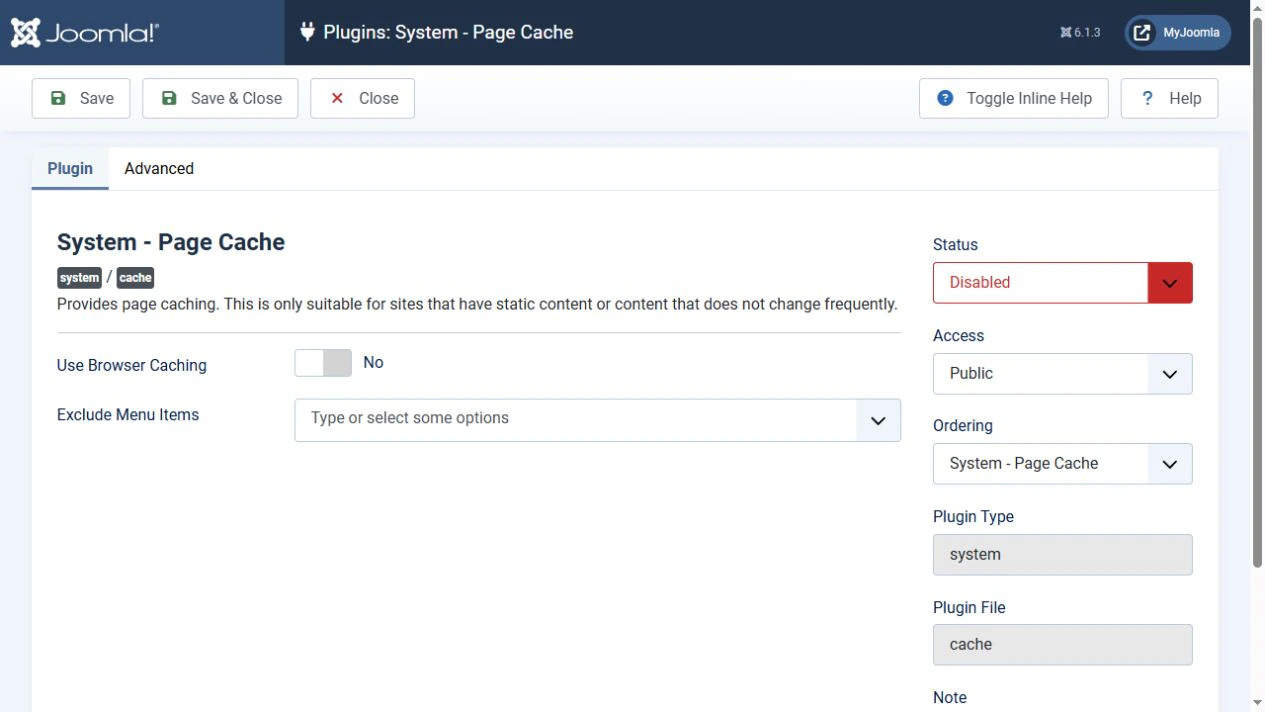
First, decide which pages can safely be served to guests from a shared cache. Then open the System – Page Cache plugin.
Enabling caching and adding exclusions
Configure the plugin in this order:
- Exclude menu items that lead to personalised or interactive pages.
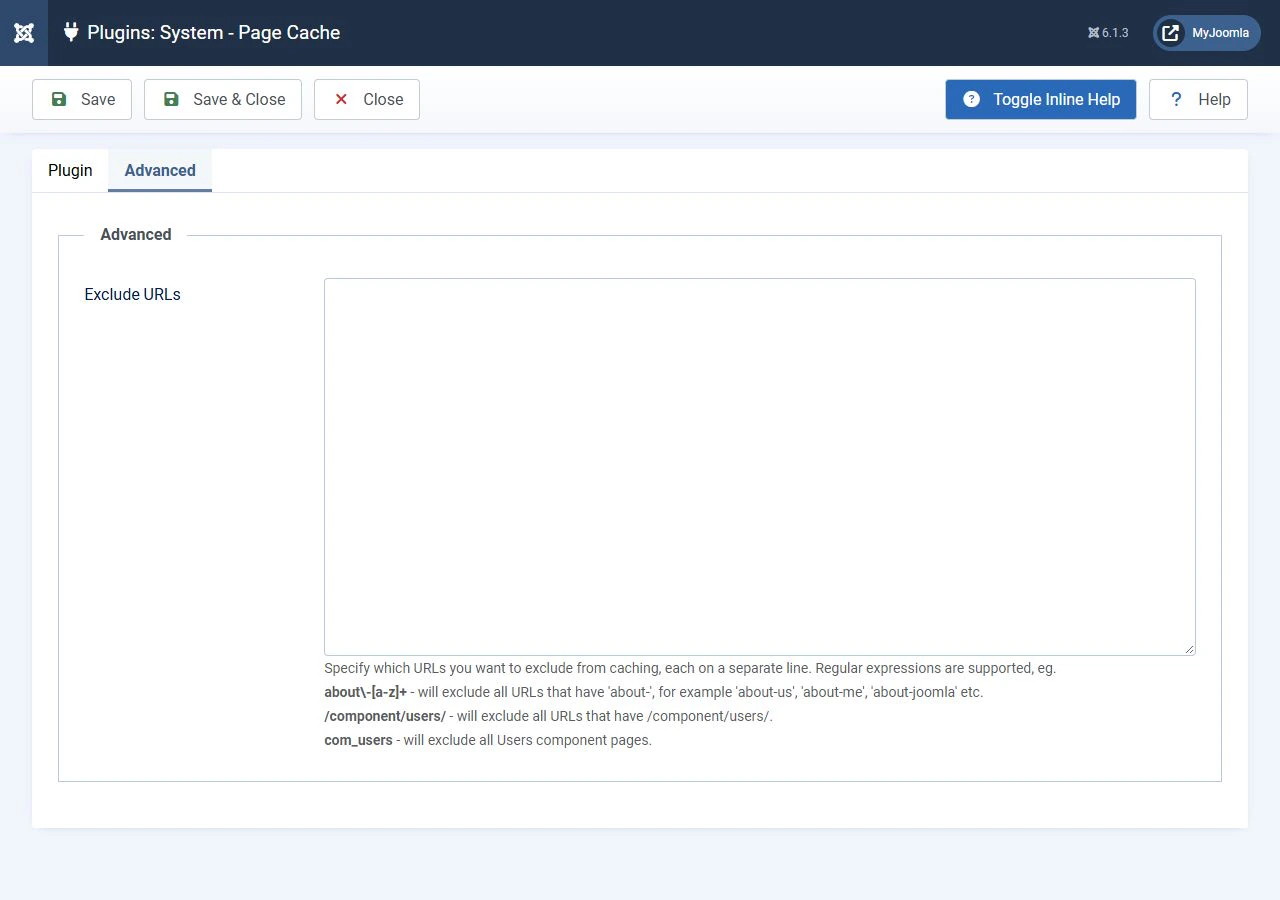
- Add URL exclusions where necessary.
- Leave browser caching disabled during initial testing.
- Enable the plugin and save its settings.
- Clear the existing cache.
- Test the site in a separate private browsing window without signing in.
The URL exclusion field supports regular expression patterns. Do not treat it as a simple list of links: read the field’s help text and test each pattern against actual URLs.
The page cache lifetime comes from Joomla’s Global Configuration. If the relevant field is hidden while system caching is disabled, temporarily select conservative caching, set the cache time and then restore the required mode.
Browser caching
The browser caching setting allows the browser to reuse a previously received response. This is a separate mechanism: clearing the server cache does not remove data already stored in visitors’ browsers.
For this reason, leave it disabled during initial setup. Enable it after checking how the site displays changes and refreshes its content.
This setting also does not replace server or CDN cache settings for images, CSS and JavaScript.
How to clear the Joomla cache
Clear the cache when changes must appear immediately but visitors are still receiving a stored version.
Removing current cache entries
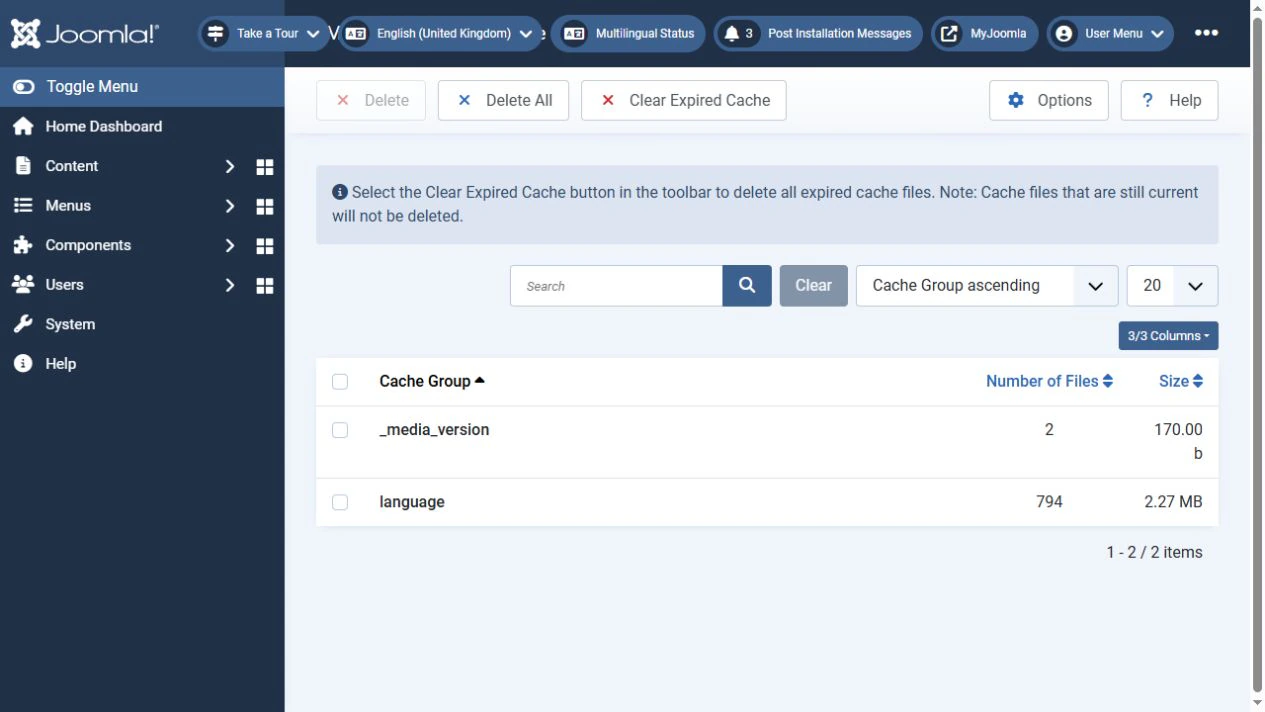
Open the cache management page, select the required groups and click Delete. To clear everything, use Delete All if that button is available.
Cached pages belong to the page group. Saving an edited article should not be treated as a guarantee that this group has been cleared.
In Joomla 3, pay attention to the Site or Administrator selection: the cache for these areas may be displayed separately.
After deletion, the first requests rebuild the cache. A temporary increase in response time is expected.
Removing expired cache entries
The Clear Expired Cache command removes entries whose lifetime has ended. In Joomla 3, it is available through the System menu; in newer versions, it is available on the cache management page.
This does not replace a full cache clear after an urgent change: entries that have not yet expired may remain.
If a page still looks outdated after clearing Joomla’s cache, check the other layers: the browser, optimisation extensions, hosting server cache and CDN.
How to check the result
Check both performance and content accuracy:
- Open the site as a guest in a private browsing window.
- Visit several articles in the same category and check the breadcrumbs.
- Test search, filters and pagination.
- Submit a test form and confirm that messages appear correctly.
- If the site has a shop, test adding and removing items in a guest shopping cart.
- Edit a test article, clear the relevant cache and confirm that guests can see the update.
Compare performance on repeat visits: the first request after clearing the cache still needs to build it.
Which mode should you choose?
Start with conservative caching and review the settings of dynamic modules. Add page caching for public content after configuring the necessary exclusions.
Use progressive caching after testing the behaviour of all modules. The appropriate mode depends on how the particular site works, not just its Joomla version.
Terms used:
CSS, HTML, JavaScript, PHP, Menu