Table of contents
Module positions determine where a Joomla template displays menus, search forms and other supporting content. The built-in preview shows the names of these areas directly on your website.
Enable module position previews
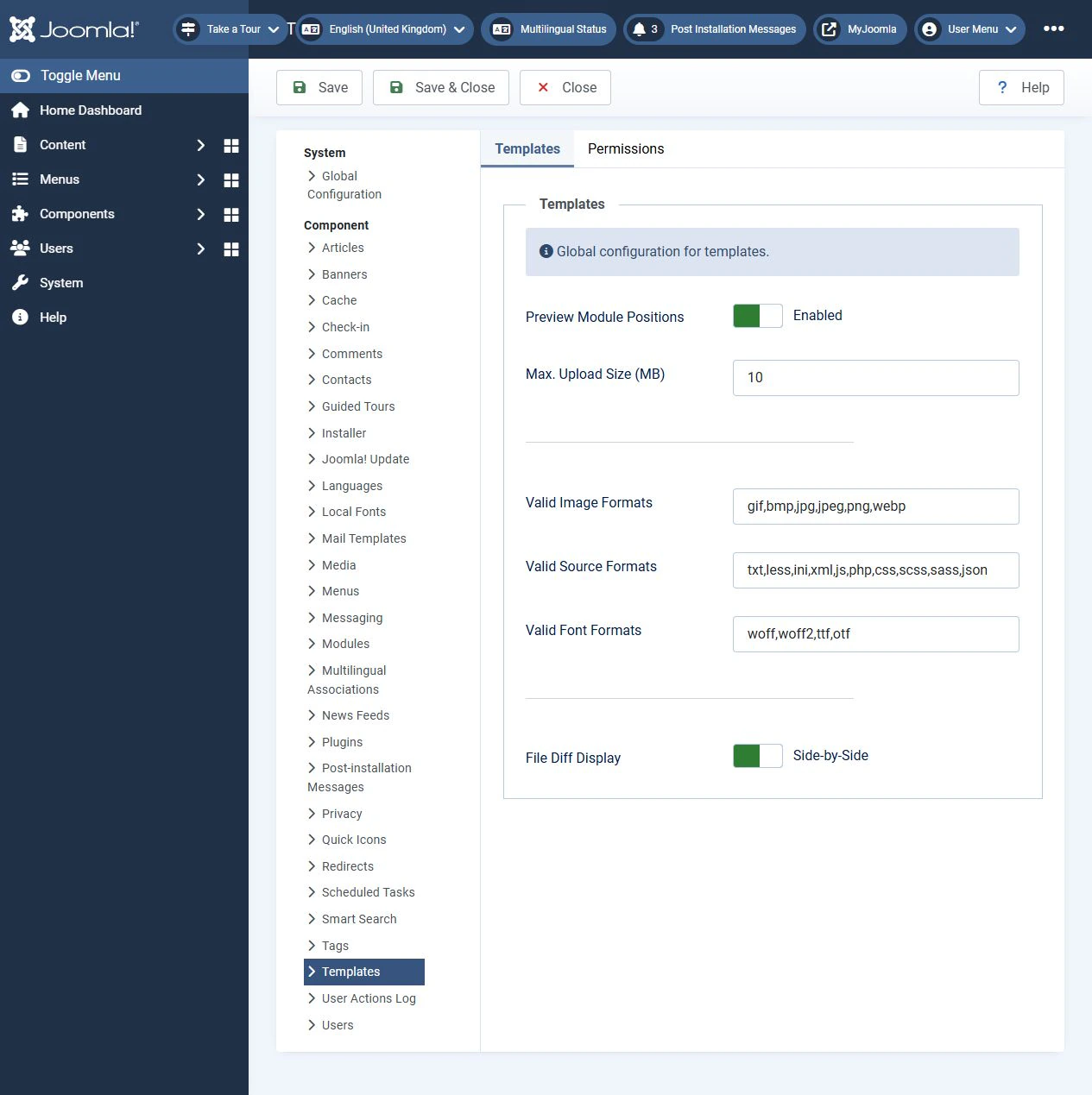
Module position previews are controlled through the template options. You need permission to change these settings.
- In the administrator panel, open System.
- In the Templates panel, select Site Templates.
- Select Options.
- On the Templates tab, set Preview Module Positions to Enabled.
- Select Save & Close.
Add tp=1 to the URL
Open the page you want to inspect. If its URL does not contain a question mark, append ?tp=1:
https://example.com/?tp=1
https://example.com/contacts?tp=1
If the URL already contains parameters after a question mark, append &tp=1:
https://example.com/index.php?option=com_content&view=featured&tp=1Replace example.com with your own domain. Do not add a second question mark. If the URL contains a fragment such as #contacts, place the parameter before it.
Load the modified URL. Joomla will label the module positions rendered by the template on that page. Inspect the page you actually need: the home page and other pages may use different layouts.
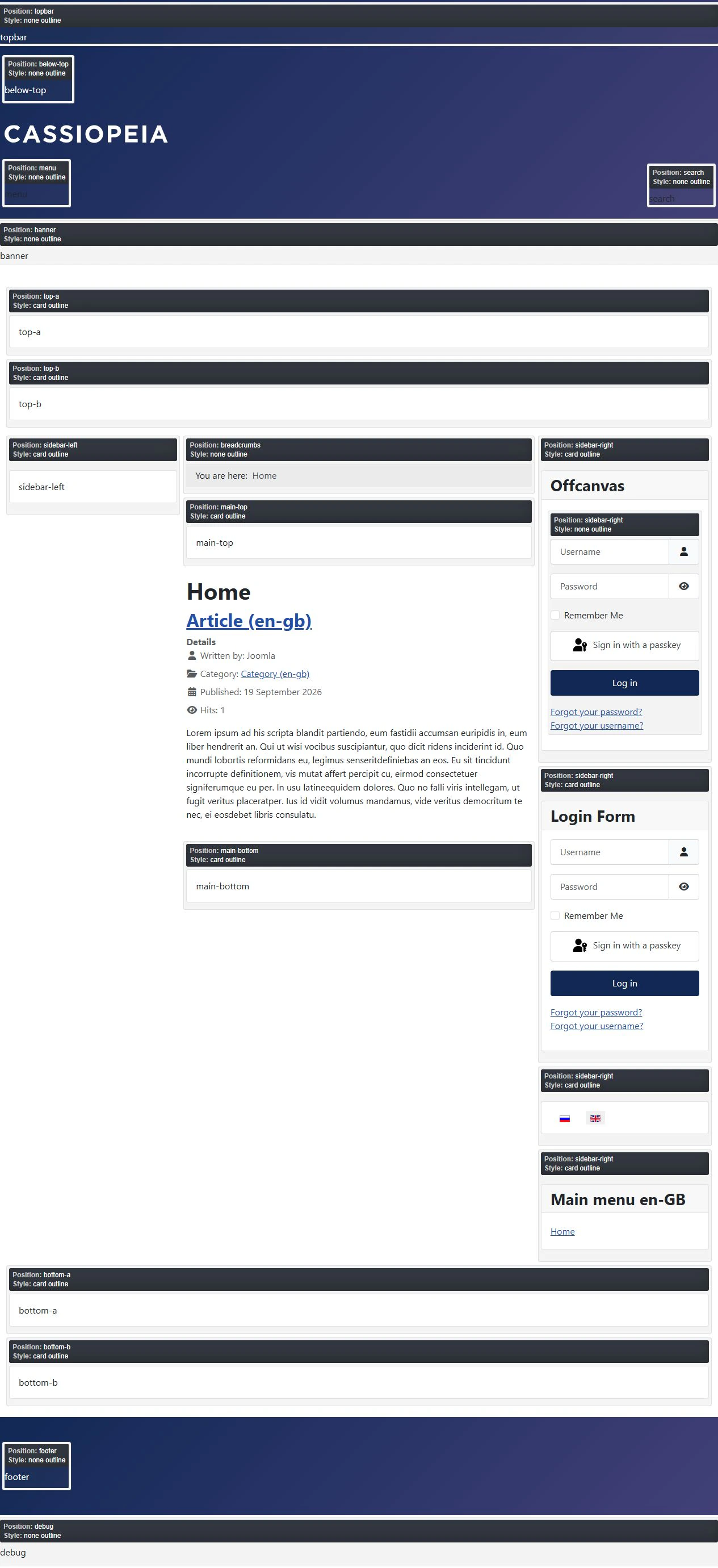
The Style label inside a preview box, such as card or none outline, describes how the module output is rendered. It is not the name of the site’s template style.
Choose a template and its style
The template defines the available positions. For example, Cassiopeia includes sidebar-right, main-top and footer. Other templates may use different names and place their areas differently.
A template style is a saved set of template settings. One template can have several styles assigned to different menu items.
Open System → Site Template Styles. The list shows each style, its template and its page assignments. A star marks the default style. Individual menu items may use a different style.
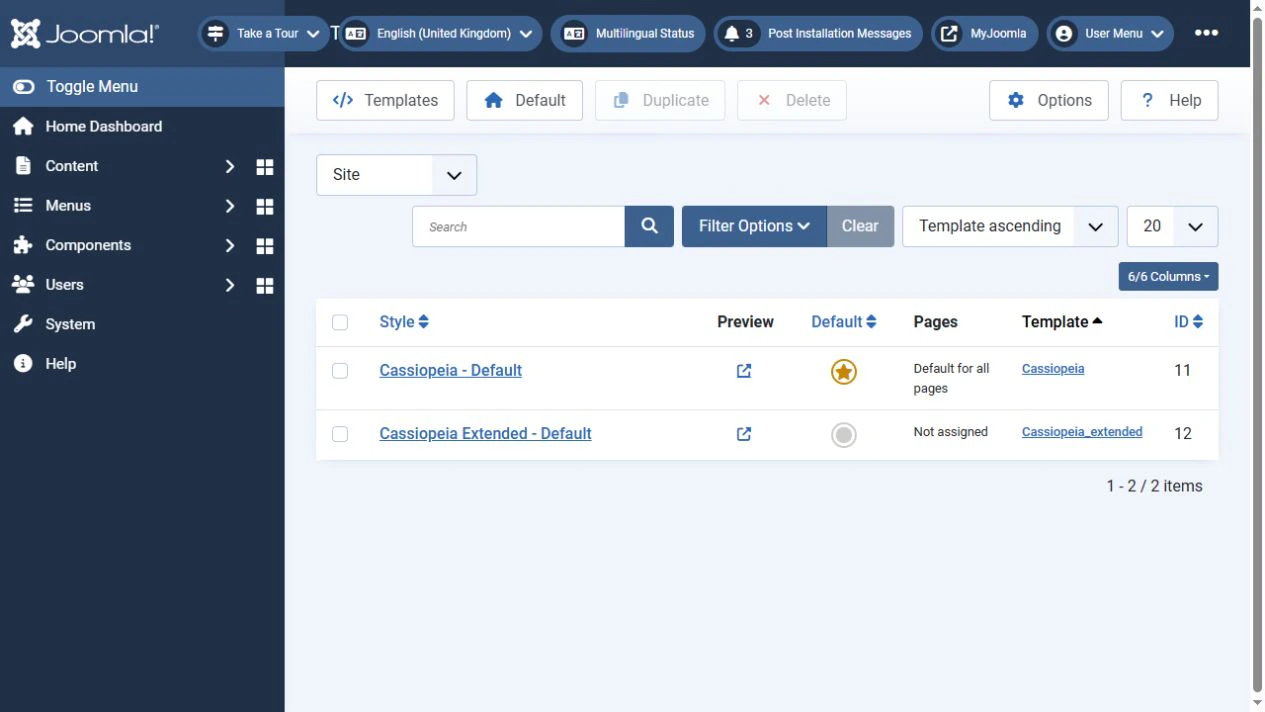
Once module position previews are enabled, select the icon in the Preview column beside the required style. Joomla generates a URL containing tp=1 and templateStyle.
For example, a preview URL for a style with ID 11 might look like this:
https://example.com/index.php?tp=1&templateStyle=11The number 11 is an example, not a value that works on every site. Use the preview link generated by your own template styles list.
To inspect the current layout of a particular page, append tp=1 to its normal URL. You do not need to change the default template style to preview positions.
Positions and menu assignments
A position determines where a module appears. Its menu assignment determines which pages display it.
For example, a module can use sidebar-right but appear only on the contact page. Selecting a position does not automatically display the module on every page.
Open the module under Site Modules and check both its position and the settings on the Menu Assignment tab.
Why a position or module is missing
A missing position label and a missing module require different checks.
Position labels do not appear
Check that you saved the preview setting and added tp=1 correctly.
If only some positions are missing, consider these possibilities:
- The page uses a different template or style.
- The template renders an area only under certain conditions.
- An area is disabled in a third-party template’s layout settings.
- A page builder uses its own method to display content blocks.
- A cached version of the page is being displayed.
The preview does not guarantee that every position listed by a template will appear. For example, an empty area may be omitted when the template renders it conditionally.
A position appears, but its module does not
Check the module’s settings:
- Its status is Published.
- Its publishing start and finish dates allow it to appear.
- Its position exists in the template used by the page.
- Its menu assignment includes the current menu item.
- Its access level allows the visitor to see it.
- Its language matches the page, or it is assigned to all languages.
- It has content or data to display.
If these settings are correct, check caching, layout options and CSS. A block may be hidden at a particular screen width.
Typing a new name into the position field does not create an area in the page layout. The template must actually render that position.
Disable previews when you finish
Return to the template options, set Preview Module Positions to Disabled, and save. Removing tp=1 from your address bar only closes the preview in that tab; it does not disable the feature.
To display a module in Joomla, identify the template used by the page, choose a suitable position, and check the module’s publication settings and menu assignment.
Terms used:
Module position, Template style, Template, CSS, Menu, Cassiopeia