Table of contents
The Joomla administrator panel lets you manage articles, menus, users and site settings. This guide explains how to log in, find the section you need, choose an interface language and end your session properly.
How to open the Joomla administrator panel
The usual administrator address is your site address followed by administrator/. For example: https://example.com/administrator/. If Joomla is installed in a subfolder, include it in the address: https://example.com/site/administrator/.
Enter the full address in your browser's address bar. The same principle applies to a local site: include the protocol and the domain assigned to the site in OpenServer.
On a protected site, the standard address may not display the login form. A security extension can change how you reach it, require a special address or add another authentication step. Use the details provided by the site owner. Do not guess secret parameters or disable protection to gain access.
Logging in to the public site and logging in to the administrator panel are separate actions. Signing in through a visitor login form does not, by itself, grant access to the administrator area.
Which permissions do you need?
A correct password alone is not enough. Your account needs the Administrator Login permission.
With Joomla's default permissions, the Manager, Administrator and Super Users groups have this access. Registered visitors, Authors, Editors and Publishers do not have it by default.
A site's groups and permissions can be customised. Check the permissions actually assigned to the account, rather than relying only on its group name. Access to individual components, article editing and publishing is configured separately.
If your work only involves content, you do not necessarily need full Super Users access. The site administrator decides which permissions are required.
How to log in
For a standard login, you need the username and password for your Joomla account.
- Open the administrator address provided for the site.
- Enter your username and password. Do not substitute your email address for the username unless the site supports that login method.
- If necessary, choose an interface language in the Language field.
- Click Log in.
- If Joomla requests additional verification, complete that step.
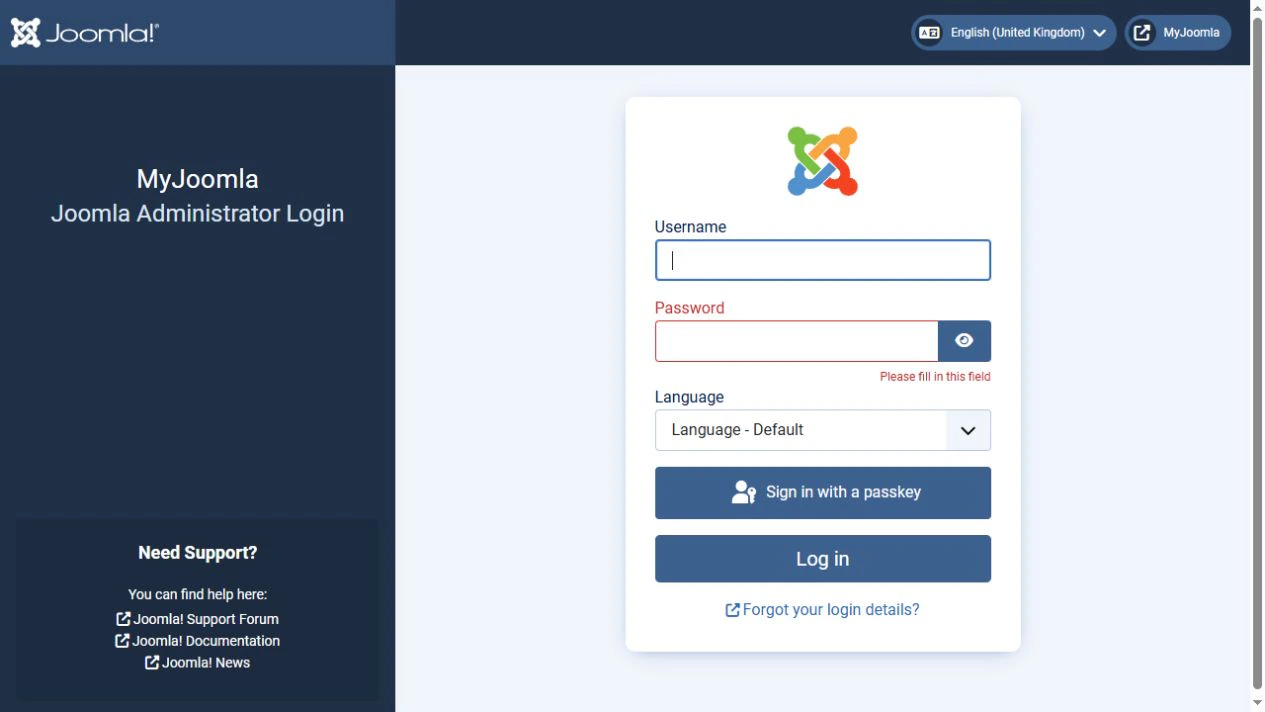
The username and password are set when Joomla is installed or when a user account is added. There are no universal login credentials for all Joomla sites.
When multi-factor authentication, or MFA, is enabled, an additional step follows the username and password check. Depending on the settings, it may require a code from an authenticator app, a security key or another available method. Access to the panel remains restricted until verification is complete.
If your main method is unavailable, use a previously configured alternative or a saved backup code, where supported. Otherwise, contact the site administrator.
A passwordless login button, if present, is for a passkey login method set up in advance. It does not let you access someone else's account or skip security checks.
How Joomla versions differ
The main examples in this guide use Joomla 6. The screenshots were taken on a test site running Joomla 6.1.3.
In Joomla 4, 5 and 6, the standard administrator interface uses the Atum template, with the main menu on the left and the workspace on the right. Command names, appearance and available tools can vary between releases and language packs.
Joomla 3 has a different standard interface, with the main menu at the top. Old Joomla 3 screenshots therefore do not provide an exact map of the modern panel.
The login process also differs. Joomla 4.2 introduced MFA with an additional check after the username and password. In older versions, two-factor authentication could ask for a secret code directly on the initial login form.
Installed extensions, panel settings and user permissions also affect the interface. A missing section does not necessarily indicate a Joomla error.
What is on the Home Dashboard?
After a successful login, Joomla usually opens the Home Dashboard. It contains modules with quick links, notifications and site information.
These modules can be customised. The illustrations show one particular test site, so module names and positions may differ on your site. Extra modules provided by third-party extensions are not mandatory parts of Joomla.
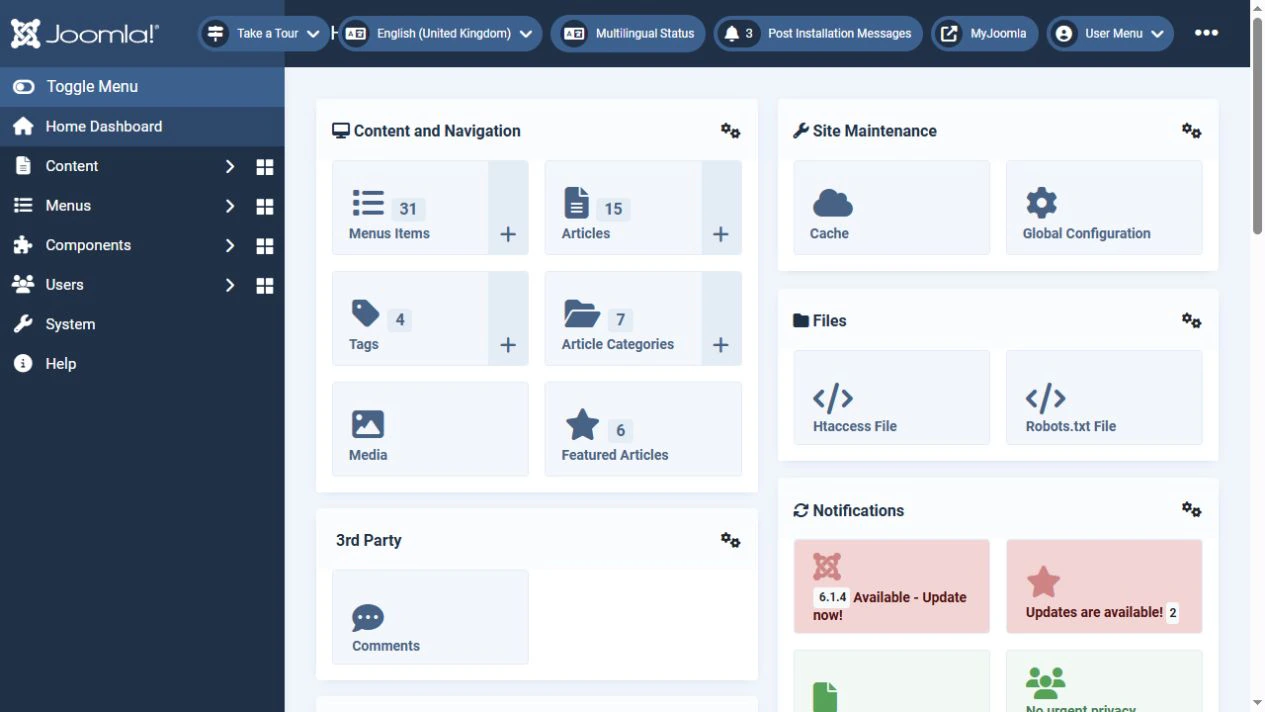
The main menu is on the left. Toggle Menu collapses or expands it. On smaller screens, some tools may be tucked away in additional menus.
Utility controls and the user menu appear at the top. Save confirmations, warnings and errors appear in the workspace. Check these messages after performing an action.
Main administrator sections
Start with the sections you need for your work. Their availability depends on your account's permissions.
- Content contains articles, categories, media and other content management tools. To work with articles, open Content → Articles.
- Menus contains site menus and their items. An article and a menu item are different objects: the article stores content, while the menu item controls navigation and how that content is displayed.
- Components provides access to built-in and installed components. The available entries depend on the site.
- Users contains user accounts and related tools. User management is not available to every role.
- System provides general settings, extension installation and updates, languages, templates, maintenance and system information.
- Help provides Joomla help resources.
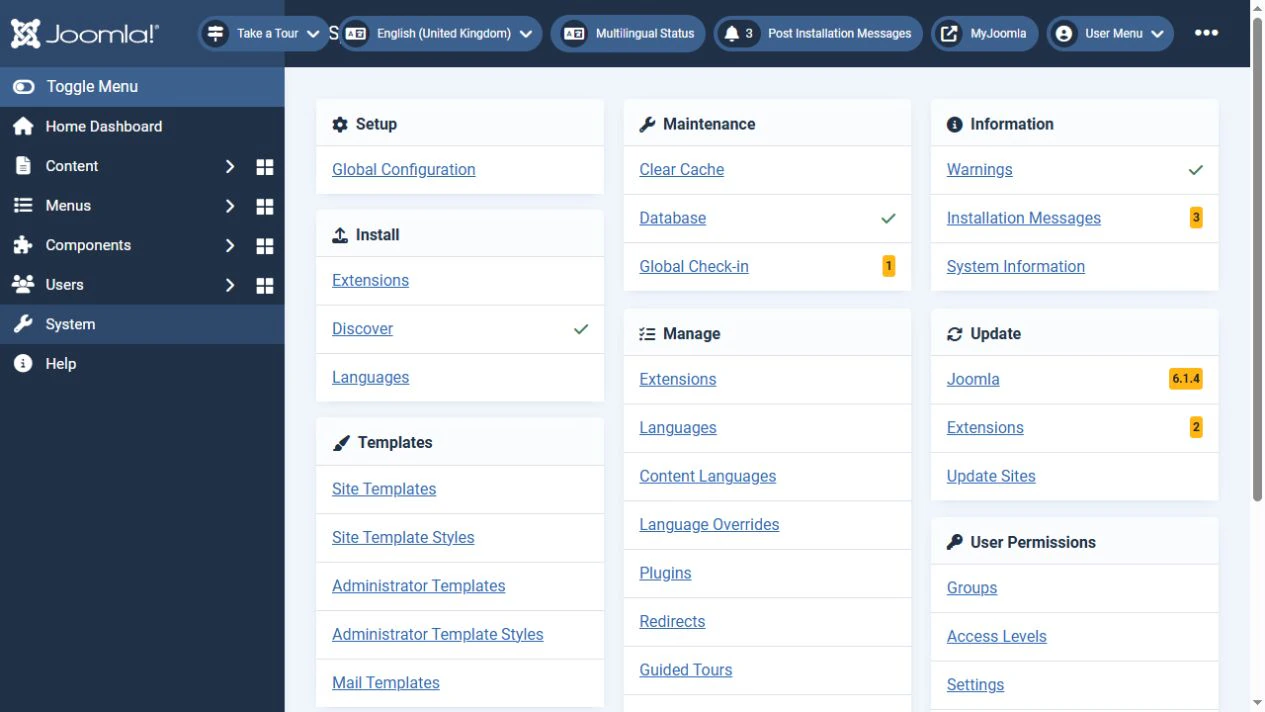
If your task is to edit an article, start with Content → Articles. You normally do not need to change the site's global settings.
Working with lists and editing forms
Most everyday tasks begin with a list of items, such as articles, categories, menu items or modules.
Use search and filters to find the record you need. If an item seems to have disappeared, check the selected language, status, category and other filters.
Click the item's title to open its editing form. Additional settings are usually grouped into tabs.
- Save saves your changes and keeps the form open.
- Save & Close saves your changes and returns to the list.
- Close or Cancel leaves the form without saving the current changes.
Before performing a batch action, check which rows are selected. If Joomla reports that another user is editing a record, coordinate with them.
After saving, look for a success message. If necessary, open the page on the public site and check the result.
Choosing the administrator language
You can choose the administrator interface language from the installed languages on the login form. This does not translate article content or create a multilingual site.
For a personal preference, open User Menu → Edit Account → Basic Settings. Choose the required Backend Language and save your account settings.
In the Russian interface, the path is Мой профиль → Параметры профиля → Основные → Язык панели управления.
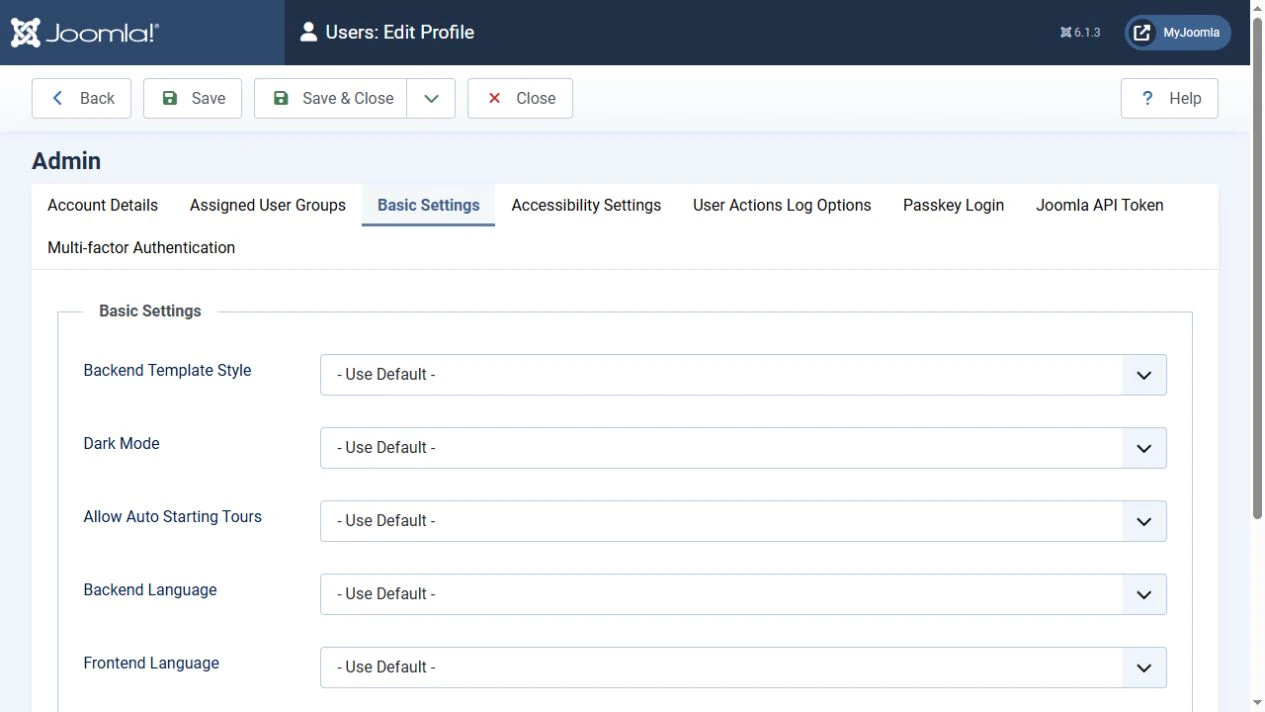
The Frontend Language field applies to the public site and is a separate setting. Do not confuse it with the administrator language or an article's language.
If the language you need is missing, ask the administrator to install the appropriate language pack. Some panel versions also provide a language switcher in the top bar.
How to log out
Use the logout command when you finish, especially on a shared computer.
- Save any changes you want to keep and close the editing form.
- Open User Menu at the top of the panel.
- Click Log out. In the Russian interface, use Мой профиль → Выйти.
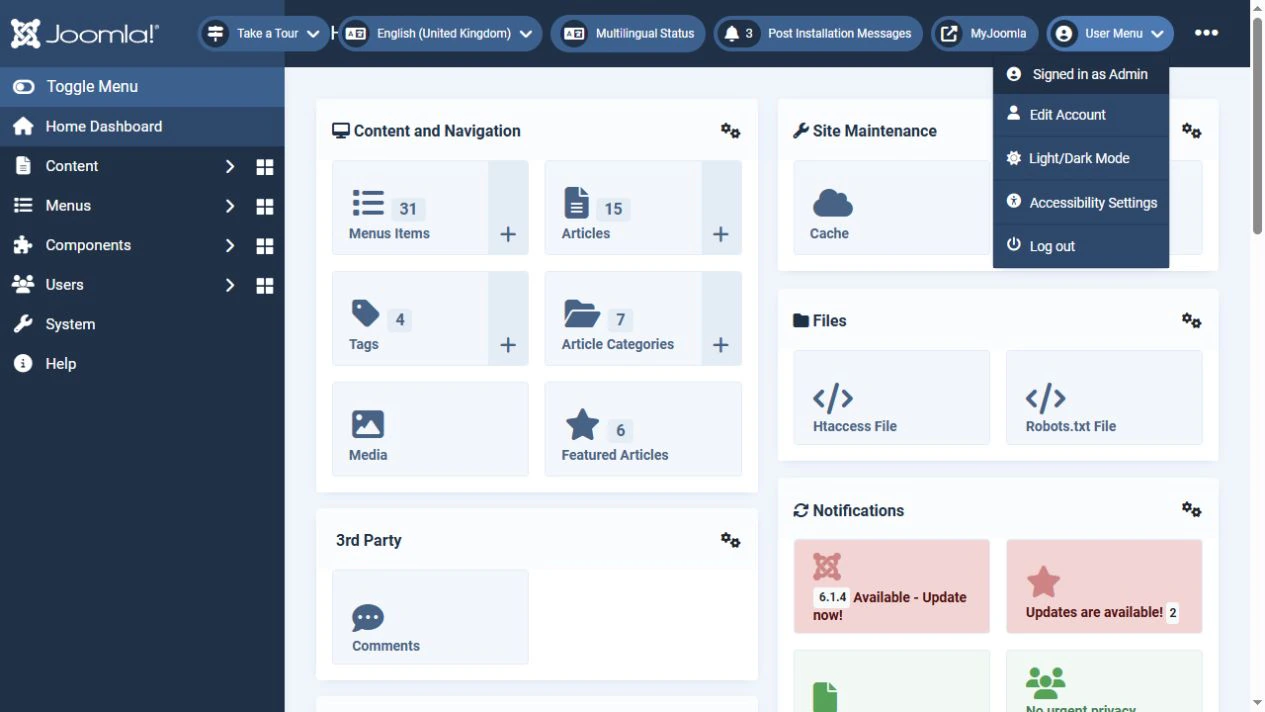
With the standard configuration, Joomla returns you to the login form. On a protected site, an installed extension may determine the destination.
If the user menu is unavailable in an editing form, first click Save & Close, Close or Cancel, depending on whether you need to keep your changes.
Closing the browser tab is not a substitute for logging out. Your session can also expire automatically after a period of inactivity. Unsaved changes may then be lost.
Why you cannot log in
The cause depends on the stage at which the problem occurs. A login failure message alone does not prove that the password is wrong.
- The form does not open, or you see a 403, 404 or redirect. Confirm the address with the site owner. A security extension, server rule or IP restriction may be involved.
- Joomla rejects the username and password. Check the keyboard layout, Caps Lock and the details entered by your password manager. Do not keep retrying indefinitely, as protection may temporarily block access.
- The credentials are correct, but administrator access is denied. The administrator needs to check the account's status and Administrator Login permission.
- An MFA code is rejected. Use a current code and check that your device's clock is synchronised. If you lose the device, use a previously prepared backup method or contact the administrator.
- You see a token error or return to the login form. Open the form again at the correct address. Check that cookies are allowed for the site. If the problem continues, give the administrator the exact error message and the time it occurred.
- You see an error 500 or a blank page. The server logs and site operation need investigation. Changing your password alone will not fix this error.
- You have forgotten your password. Use the site's recovery procedure or contact the responsible administrator. Privileged accounts may have additional restrictions.
Do not include passwords, one-time codes, backup codes or protected login addresses in public comments or screenshots.
Getting started
For everyday work, know your login address, use your own account and learn the menu sections you need. Start with the article list, check that your changes have saved and end your session with Log out.
If a feature is missing or access is blocked, ask the site administrator about your permissions and the site's access rules.