
Table of contents
You cannot assess Joomla website speed from a single loading time or a tool’s score. You need to check when the main content appears, how quickly the page responds to interactions and whether elements shift unexpectedly. This article explains the testing tools and a measurement process that helps you compare results.
Lab and field data
Performance tools use two types of measurements. They answer different questions.
Lab data comes from opening a page under specified test conditions, including the device, network and test location. These measurements help diagnose delays and compare a page before and after changes. A single run describes that particular test.
Field data comes from real users’ visits. It reflects their devices, connections, locations, cache states and interactions. In PageSpeed Insights, this data comes from the Chrome UX Report, or CrUX, covering a rolling period of the previous 28 days.
Check the scope of the data. A report may describe a particular URL or the whole origin: pages sharing the same protocol, domain and port. Good origin results do not prove that every page performs equally well.
If there is insufficient field data, the service may show origin data or “No data”. Neither outcome establishes whether the page is fast or slow.
Lab and field results can differ without either measurement being incorrect. For example, a test may simulate a first visit on a slow device, while some real visitors return with resources already cached.
Core Web Vitals and the overall score
Core Web Vitals describe loading, responsiveness and visual stability. They are individual metrics rather than a tool’s overall rating.
| Metric | What it measures | Good value |
|---|---|---|
| LCP — Largest Contentful Paint | When the largest image or text block in the viewport appears | 2.5 seconds or less |
| INP — Interaction to Next Paint | The delay between a user interaction and the next visual update | 200 milliseconds or less |
| CLS — Cumulative Layout Shift | Unexpected movement of page elements | 0.1 or less; unitless |
Field assessment uses the 75th percentile: 75% of the measured visits have a value no worse than the reported value. Mobile and desktop data are assessed separately. With sufficient data, all three metrics must be good. A missing metric must not be treated as zero.
An ordinary Lighthouse page-load test does not include user interactions, so it does not measure INP. The lab metric Total Blocking Time, or TBT, helps identify main-thread blocking but does not replace INP.
Other metrics are useful for diagnosis:
- TTFB measures the time to the first byte of the response and includes network and server effects.
- FCP measures when the first content appears.
- Speed Index describes how quickly the page becomes visually populated.
- Load time, Document Complete and Total Time describe loading stages whose definitions depend on the tool.
Lighthouse’s Performance score ranges from 0 to 100: 90–100 is good, 50–89 needs improvement and 0–49 is poor. The score combines weighted metric values. It is not the percentage of the website that has been optimised, and it is not the Core Web Vitals assessment.
There is no universal rule that “a score above 80–85 means the test has passed”. It is also incorrect to assume that a large website cannot score 100. Results depend on the page and test conditions. A high score alone does not guarantee a good experience for every visitor.
Testing tools
Start with PageSpeed Insights, then use additional tools to investigate requests and page behaviour. Scores from different tools are not directly comparable.
PageSpeed Insights
PageSpeed Insights combines CrUX field data with a Lighthouse lab report.
- Enter the full public URL of the page.
- Run the analysis.
- Check both the Mobile and Desktop tabs.
- In the upper section, check whether field data is available and whether it describes the URL or the origin.
- Below it, inspect the lab metrics, test conditions and diagnostics.
The mobile test uses device emulation and performance restrictions. It does not measure the page on every smartphone model. The desktop profile uses different conditions, so a higher desktop score does not resolve a mobile performance problem.
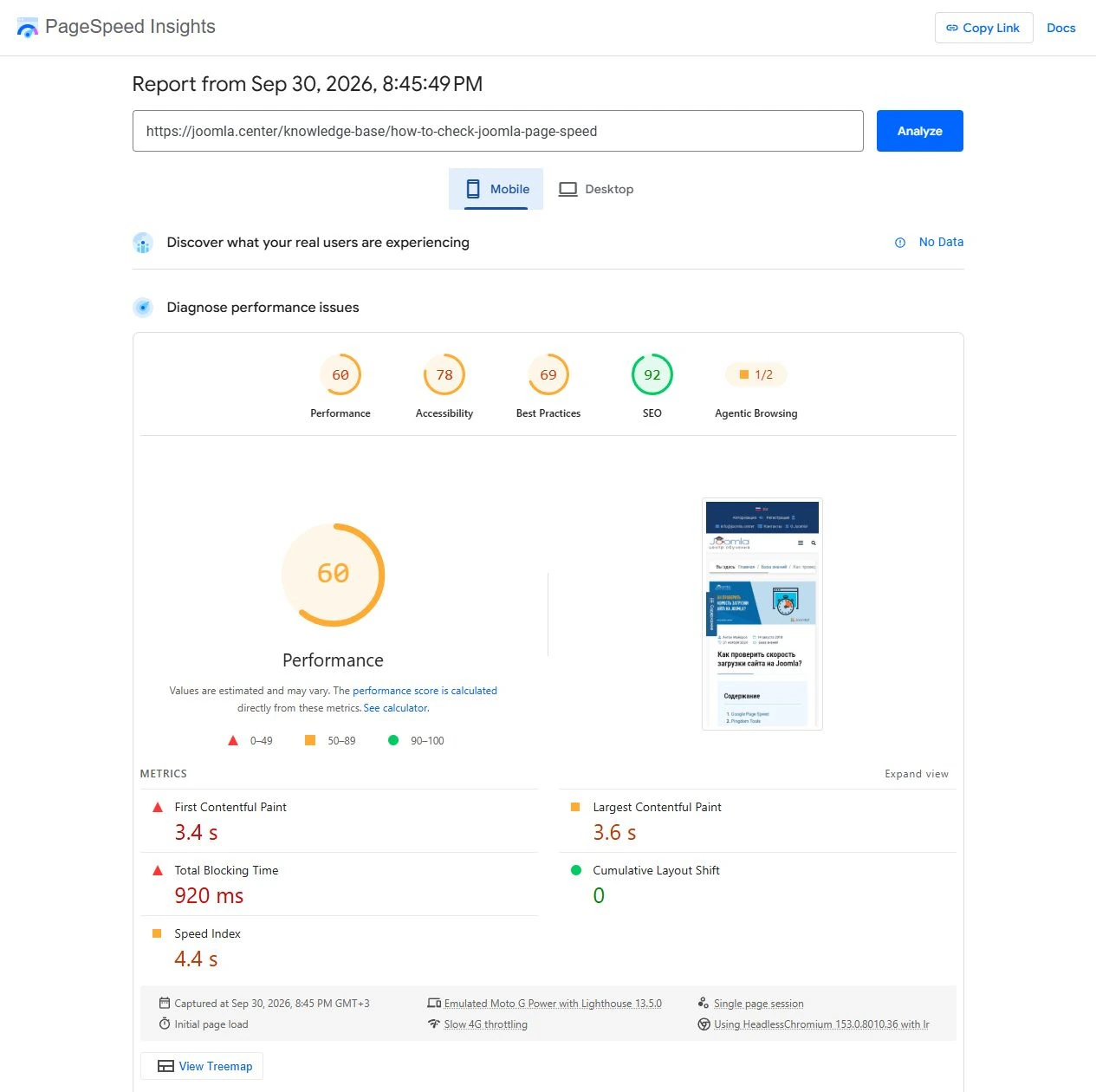
Example recorded on 30 September 2026 at 20:45 Moscow time, UTC+3. The public Russian page used for this article was tested without changing the website’s settings. The report used Lighthouse 13.5.0 and an initial page load.
| Conditions | Performance | LCP | TBT | CLS |
|---|---|---|---|---|
| Emulated Moto G Power, Slow 4G | 60 | 3.6 s | 920 ms | 0 |
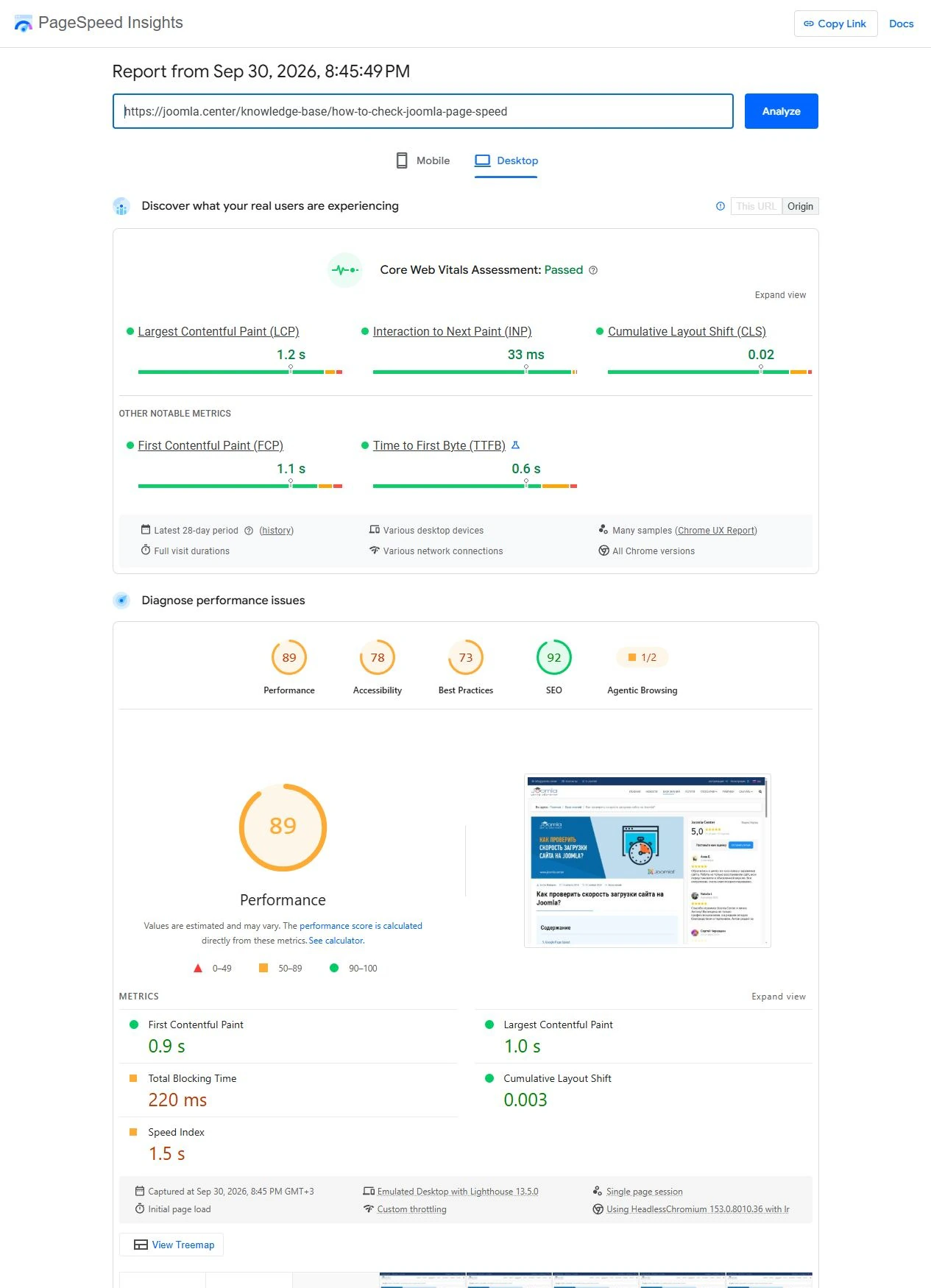
| Desktop emulation, custom throttling | 89 | 1.0 s | 220 ms | 0.003 |
These are individual runs for each profile, not the median of a test series. The test runner’s region and server cache state were not recorded separately.
In desktop mode, the service showed field data for the origin, rather than the individual article: LCP 1.2 seconds, INP 33 milliseconds and CLS 0.02. The origin passed the field assessment, while the page’s lab score was 89. These results describe different scopes, periods and conditions.
Lighthouse and developer tools
For a local Joomla website, use Lighthouse in desktop Chrome. Open the website page, open developer tools and select the Lighthouse tab. Choose a device profile and run a page-load analysis.
Public testing services cannot access an address such as joomla.local. Local testing helps investigate the template, images and JavaScript, but does not reproduce production hosting, a CDN or the visitor’s network path over the internet.
The Network tab shows requests, transfer sizes and waiting stages. The Performance panel helps investigate long tasks, layout shifts and interaction delays.
Test important actions as well as the initial page load: opening menus, searching, filtering and submitting forms. Recording these scenarios complements a standard loading test.
Pingdom Tools
Pingdom Tools reports loading time, page size, request count and the sequence of requests. Use it to investigate resource loading. Its rating is not equivalent to Lighthouse’s score or the field assessment of Core Web Vitals.
If Test from is available, select a test location and record it with the results. Do not treat one report as the average speed of the whole website or as an automatically completed repeat-visit test.
Before drawing conclusions, confirm that the intended page loaded with its styles, images and scripts.
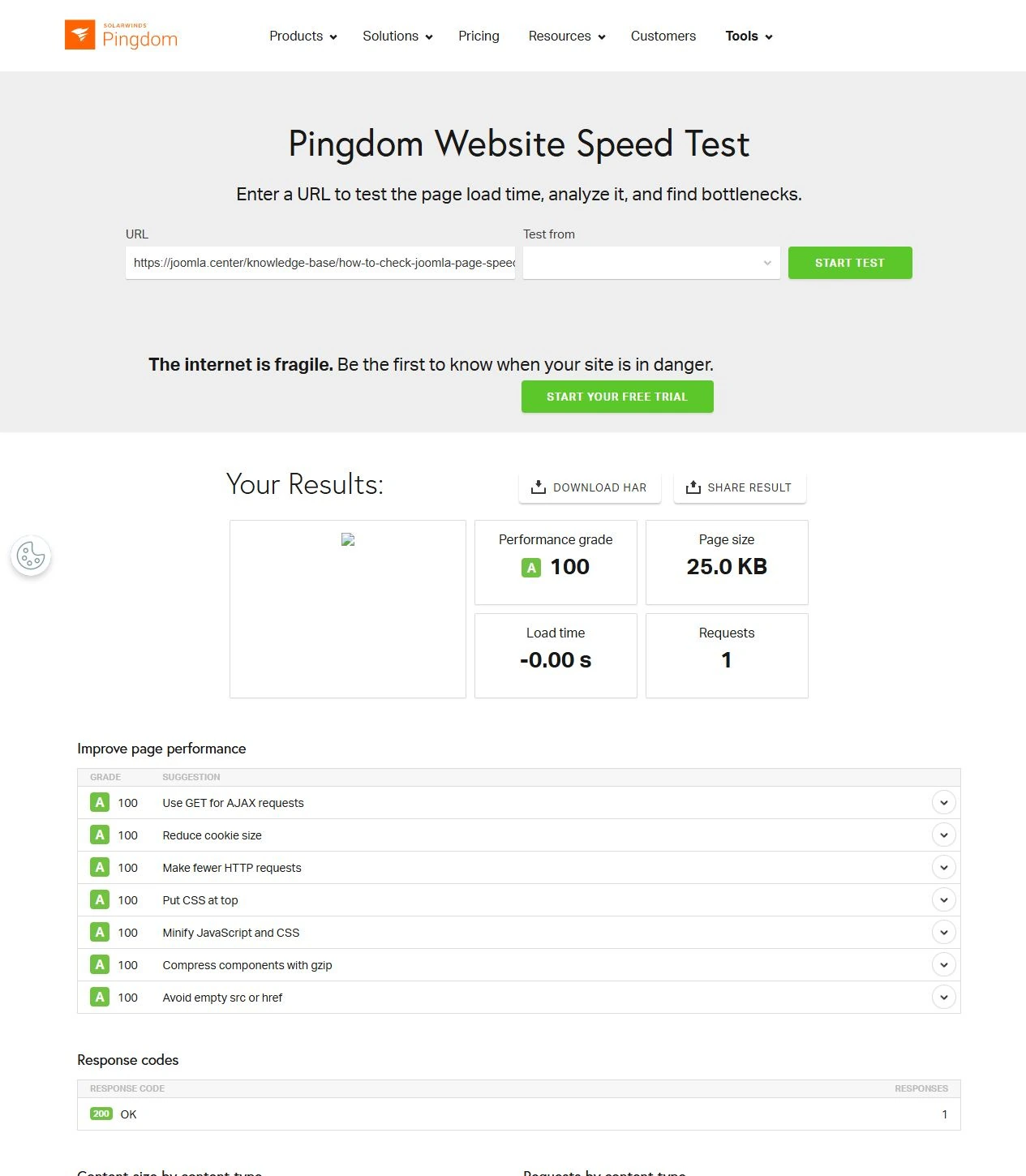
During the check on 30 September 2026, the interface displayed a score of 100, one request, a loading time of “−0.00 s” and no page screenshot. This report was excluded from the comparison because it did not establish that the complete article had loaded.
WebPageTest
WebPageTest helps investigate loading from a selected region, the request timeline — Waterfall — and the sequence of visual updates — Filmstrip.
The interface checked for this article offered region, device and connection options. Advanced settings, run counts and repeat-visit modes depend on the available access. One test does not automatically test several countries.

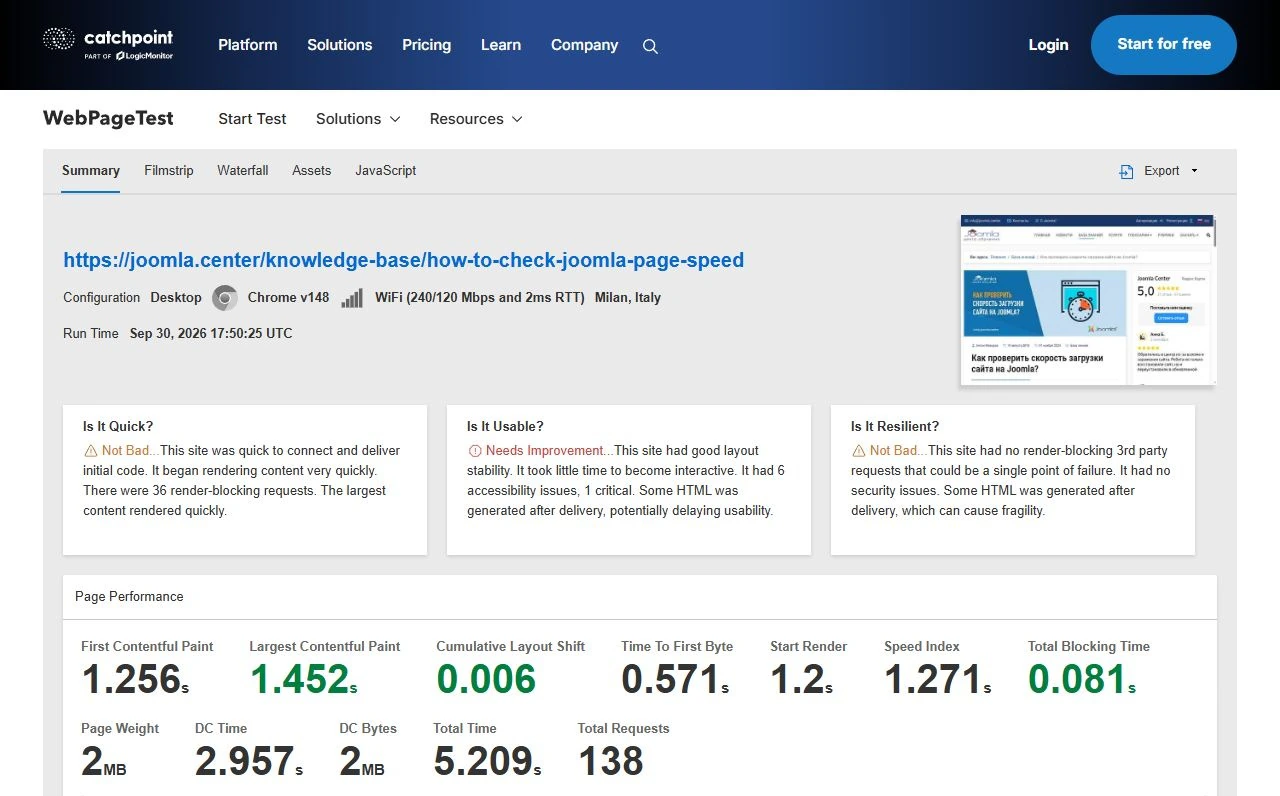
Example recorded on 30 September 2026 at 20:50:25 Moscow time, UTC+3: the same public Russian page; Chrome 148, desktop profile, Milan, Italy; WiFi at 240/120 Mbps with 2 ms latency, as reported by the tool.
One run produced LCP of 1.452 seconds, TTFB of 0.571 seconds, TBT of 81 milliseconds and CLS of 0.006. Total Time was 5.209 seconds, with 138 requests. LCP and the total test time describe different stages, so their values do not have to match.
How to obtain comparable results
Define the scenario before testing and keep it consistent when repeating the measurement.
- Choose the pages. Test the homepage, an article, a category and an important component page, such as a catalogue or form. One fast URL does not represent the whole website.
- Record the conditions. Note the date, URL, language, device profile, tool and version, region, network and cache mode. Specify whether the visitor is a guest or logged in.
- Separate devices. Compare mobile profiles with mobile profiles and desktop profiles with desktop profiles. Record network and CPU restrictions as well as the profile name.
- Consider geography. Run separate series for the audience’s main regions. A closer test location may interact differently with the server and CDN.
- Separate cache states. A first visit with an empty browser cache and a repeat visit are different scenarios.
- Repeat measurements. Three to five runs per scenario are a practical starting point. Keep every result, the median of relevant metrics and the range of values. Do not select only the fastest run.
- Investigate variation. Large fluctuations warrant checking server load, third-party resources and network delays. Explain why any invalid reports were excluded.
- Compare after changes. Use the same URLs and conditions. Then monitor field data: a rolling 28-day dataset will not fully reflect a fix immediately.
Joomla has its own page, component and module caching. Browser caching, server mechanisms and a CDN operate separately. An empty browser cache does not mean that Joomla’s cache or the CDN cache is empty.
Disable cache in the Network tab disables browser caching while developer tools are open. It does not clear the server cache. Repeating PageSpeed Insights also does not guarantee a returning-visitor scenario with a warm browser cache.
Keep the production website’s existing settings for a baseline test. Run experiments that clear or disable caching separately on a test copy. Do not mix those results with measurements of ordinary visits.
During local testing, avoid background downloads and demanding tasks. Record VPN use, browser extensions and blocked third-party requests, because they can change the conditions or page content.
Diagnosis and optimisation
A report shows symptoms and possible areas to investigate. Before making changes, establish what causes the delay.
| Observation | What to investigate |
|---|---|
| Long wait for the first byte | Network, hosting, PHP processing, database queries and cache hits |
| High LCP | The main page element, when it is discovered, image loading, CSS and fonts |
| High TBT or poor INP | Long JavaScript tasks, interaction handlers, template code, extensions and widgets |
| High CLS | Image and iframe dimensions, font changes and blocks inserted late |
| Large transfer size | Images, CSS, JavaScript and third-party resources |
After diagnosis, choose a specific change and test it on a copy of the website. Compressing an image will not fix a slow database query, and caching HTML will not eliminate every JavaScript blocking task.
Estimated savings in a report are the tool’s estimates. Do not add them together as guaranteed time savings or promise the same improvement for every website.
After optimisation, check menus, forms, search and other Joomla features as well as the performance metrics.
Conclusion
Start with PageSpeed Insights, distinguish field data from the lab test, then investigate delays with an appropriate tool. Compare the same pages and scenarios, accounting for cache state, device, network, geography and variation between repeated runs.
The purpose of testing Joomla website speed is to identify specific problems, choose justified changes and confirm the results through measurements and working user journeys.
Terms used:
CSS, HTML, JavaScript, PHP