Table of contents
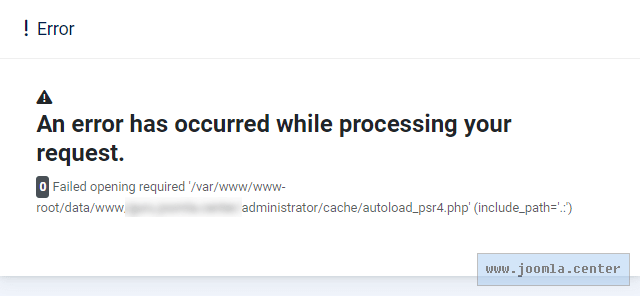
The message “An error has occurred while processing your request” means that Joomla could not process the request. The cause must be identified from the detailed error and server logs. This guide covers diagnosis and one specific case: an error accessing administrator/cache/autoload_psr4.php after extracting the installation package or moving a site.
What the message means
This is a general error message. On its own, it does not identify a problem with a particular file, extension or server.
Start with the details below the heading. For example, Failed opening required followed by the path to administrator/cache/autoload_psr4.php means that PHP could not include that file. That line alone does not establish whether the file is missing, cannot be read or is affected by another problem.
The original example in this article occurred while installing Joomla through ispmanager. Correcting file ownership applies to that scenario, but it is not a universal fix for request processing errors.
Where to start troubleshooting
Before making changes, back up the files and database of an installed site. Use a private test copy to investigate possible causes.
- Record the page address, the time of the error and the action that triggered it: opening the site, installing, updating or saving settings.
- Keep the full error message. Remove passwords, tokens and other confidential information before sharing it.
- Check the PHP error log and web server log for that time. Depending on your hosting service, these are available through the control panel or hosting support.
- Find the first related message: later errors may be consequences of the initial failure.
- Compare it with recent changes, such as a Joomla or extension update, a PHP version change, a site move or archive extraction.
Joomla logs may also help, but an error during early startup may never reach them. If the administrator interface will not open, begin with server logs.
Getting details on a test site
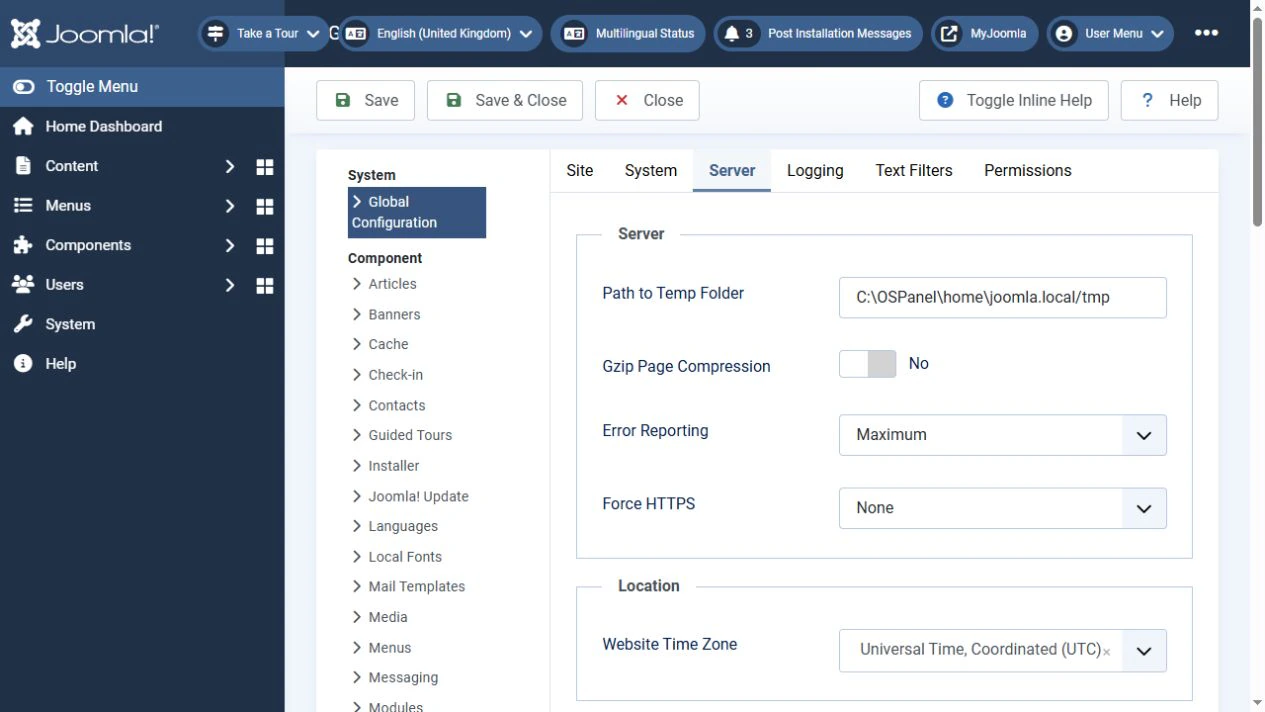
On an installed Joomla site, open System → Global Configuration. For temporary diagnosis on a private copy, use these settings:
- On the Server tab, set Error Reporting → Maximum.
- If you need a call stack, enable Debug System on the System tab.
- Save the settings and repeat the action that triggers the error.
- Record the details, then restore the original settings.
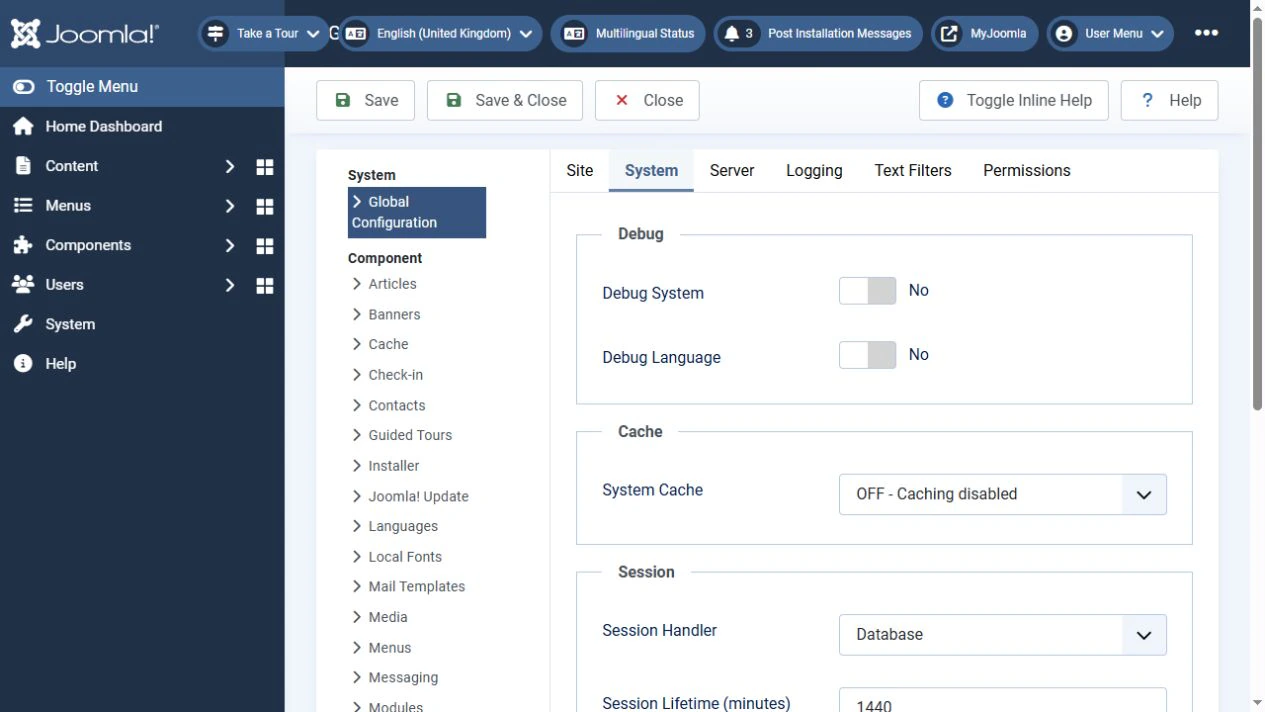
Debug Language is not needed for this check.
If Joomla installation has not finished, Global Configuration is unavailable. Use the PHP log and PHP settings in your hosting control panel. On a live site, error display should be disabled and error logging configured. Hiding an error message does not resolve its cause.
If the error names autoload_psr4.php
The file administrator/cache/autoload_psr4.php stores a map of extension namespaces. Joomla generates it automatically.
Distinguish between the messages accompanying the failure:
- Permission denied indicates an access refusal. Check the PHP process user, file and directory permissions, ownership, group membership and additional access restrictions.
- No such file or directory means that the specified path is unavailable or the file is missing. Find out why it was not created or why Joomla is using an incorrect path.
- No space left on device calls for checking both free disk space and the number of files the filesystem can still accommodate.
- Disk quota exceeded calls for checking the hosting account quota.
- open_basedir restriction in effect means that PHP configuration prevents access to the specified path.
These messages guide the investigation. For example, Permission denied confirms an access failure, but does not yet prove that ownership is the cause.
Joomla includes a fallback that uses an in-memory namespace map when writing the map fails. Handling of this case was improved in the 5.3 branch. A missing file or an inability to create it therefore does not necessarily produce the same error page in Joomla 5.4 and 6.1. An existing file that cannot be read is a separate case.
Do not copy the similarly named file from libraries/vendor/composer: it serves a different purpose. Do not create an empty autoload_psr4.php to hide the message.
If diagnosis points to a damaged or outdated map, it can be regenerated. First resolve access and disk-space problems and keep a backup. Then remove only administrator/cache/autoload_psr4.php and open the site. Joomla should generate the map again. Check the result and new log entries. Removing the entire cache directory is unnecessary.
Checking ownership in ispmanager
This method applies when the error concerns file access. Extracting an archive as root can leave ownership inconsistent with the site's configuration.
Seeing root in the owner column does not by itself prove a fault: access also depends on the group, permissions and the user running PHP.
- Check the site's document root, owner and PHP handler in its settings. If necessary, ask the server administrator which user runs the site's PHP process.
- In File manager, open the directory of the affected site.
- Check the owner, group and permissions of
administrator/cacheand, if it exists, autoload_psr4.php. - If incorrect ownership or group assignment is confirmed, select the affected items and open Attributes.
- Choose the user and group required by this site's configuration. www-root is an example, not a required value.
- Apply changes to child items only within the directory you have checked. Changing the entire site tree is justified only when incorrect ownership after extraction or migration has been confirmed.
- Check the resulting attributes, repeat the request and read the new log entries.
Changing owners and groups in ispmanager may require server administrator privileges. If the fields are unavailable, send hosting support the specific path and error message.
Do not set permissions to 777 or recursively change permissions across every site on the server. Typical values of 755 for directories and 644 for files do not automatically fix incorrect ownership either. PHP needs to read files, traverse the directories in their paths and write where Joomla needs to create data.
If the cause is different
The general message can accompany other failures. Follow the logs instead of trying fixes at random.
PHP or extension incompatibility. Check the requirements of your Joomla branch and third-party extensions. Joomla 6 requires at least PHP 8.3, and Joomla 5 at least PHP 8.1. These are compatibility minimums, not a recommendation to use outdated PHP. The command-line PHP version may differ from the version serving the website.
Incomplete files or an interrupted update. If the log reports missing classes or files, check that the operation completed and that the package is intact. A new installation requires the full installation package. Do not extract another version over a live site at random or run the installer again against an existing database.
An extension or template error. If the call stack points to third-party code, check compatibility and reproduce the problem on a test copy. An extension file appearing in the call stack helps narrow the search, but does not by itself prove that the extension is at fault.
Database problems and resource limits. Connection errors, SQL errors, exhausted memory and execution time limits require separate investigation. Changing file ownership does not resolve these causes.
Do not disable a WAF, security plugins or server restrictions solely because of the general error message. A relevant log entry should be the starting point for investigating a particular rule.
Checking that the problem is resolved
Repeat the action that failed, then check both the website and administrator interface. Make sure there are no new related log entries and that temporary debugging is disabled.
“An error has occurred while processing your request” is a starting point for diagnosis. Choose the fix based on the detailed error and checks of the environment. Correcting file ownership helps when an access problem is confirmed; it does not replace finding the cause.